Report Email Settings
There are 3 options to send completed report to your customers:
- Reports can be sent automatically upon completion by either Email or Text Message.
- You can trigger the email or text message send manually, which also gives you the ability to edit the message prior to sending
- Not at all.
Before the automation can work it is important that you review your settings so that it works the way you wish.
On the Settings Page you will find a Report Options tab. Click that and you’ll find all of the settings available:
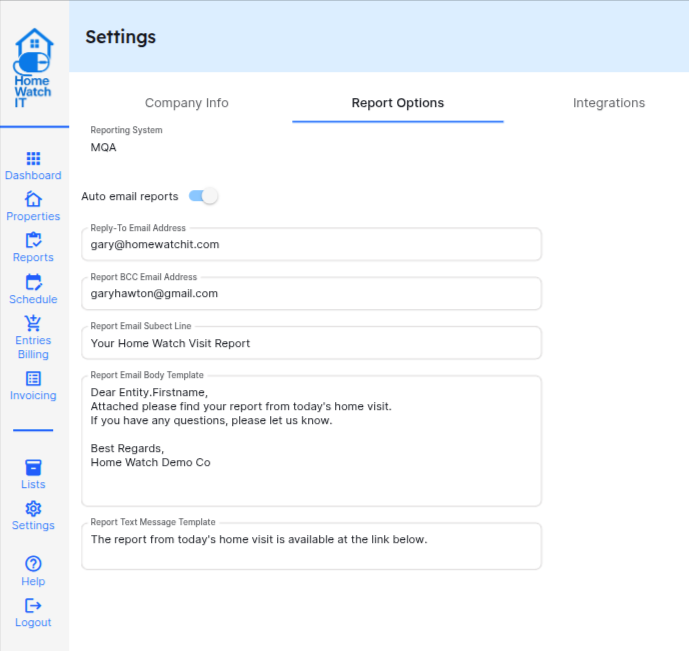
Auto Email Reports: turn this setting on if you wish for the system to automatically send reports upon completion. If you leave this setting off you will have the ability to email the reports manually (or not at all). Note that you also have settings on the customer: send via eMail or SMS and which contacts to send the report to.
Reply-To Email Address: should be set to your business email address — this is what is put into the email itself so that if the client replies to the email the system knows which email address to send to.
Report BCC Email Address: if you want all reports to be blind copied to a particular address you can fill that in here (normally left blank)
Report Email Subject Line: this will be the subject line of the email sent to your client
Report Email Body Template: enter whatever verbiage you wish to include in the email when the report is sent. This verbiage is placed within a nice formatted template that includes your logo at the top, and a button for them to press to take them directly to the report link. There is one variable allowed in the email: [[firstname]] which will have your client’s firstname substituted with the email is sent.
Report Text Message Template: this is the base message to be used when sending the report via text message. The text will also include your company name and the report link — it is important to keep this message as short as possible
Make sure to Save your changes once complete.
Once you have updated these company Settings, each customer also has a setting as to whether or not the reports should be sent to them via Email, Text Message, or not at all. You will find more details on these options on the Customer Screen document.
The end result of these settings:
1-If you set Auto Send to ON, and the customer has either (or both) Send Report by Email and/or Send Report by Text settings on — the report message will be sent within seconds of completing the report (and it syncing) without you having to do anything.
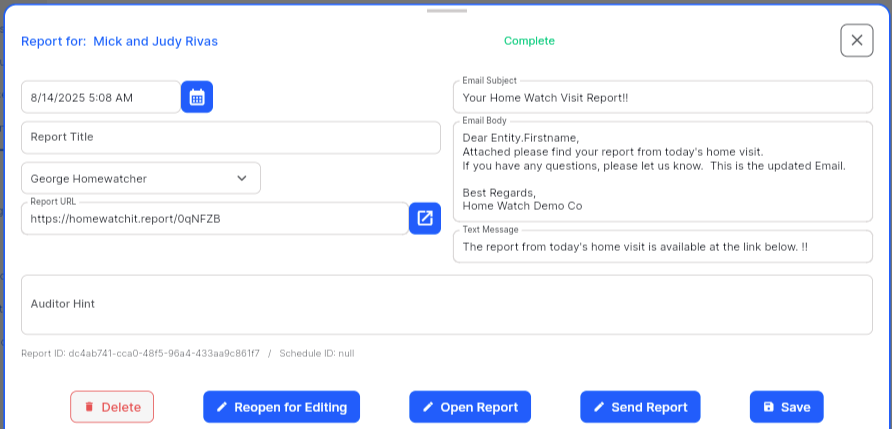
2-If you set Auto Send to OFF, and the customer has either (or both) Send Report by Email and/or Send Report by Text settings on — the report will be sent when you manually initiate the send. To do this, go to the Reports Screen and bring up the Completed Reports list. Reports that have been previously emailed will show details about the email; reports that have not been emailed will show no date information.

Open the report you wish to send and you will see the details about the report, as well as the text to use for the Email Subject, Email Body, and Text Message. Make any edits you may require and hit Send Report to email the report to your client.