
Intro to Actions
An Action is a follow-up item: something that needs doing after a visit, such as Replace smoke detector battery or Repair gate latch. Actions are tracked separately from the report they came from, so they don’t get lost once the report has been sent.
Actions arrive from two places:
- From a report — the technician flags an action on a question while taking a report in the mobile app (see Taking a Report). With MonitorQA or SafetyCulture, actions raised in the reporting app sync into HWIT.
- From your clients — a client asks for a service in the Customer App. See Client Requests and In Residence Requests.
- From your office — click Add Action on the Actions screen (or on a property’s Actions tab), or create one from a customer conversation in Communications.
Action or Task?
Section titled “Action or Task?”An Action and a Task are easy to mix up, but they do different jobs:
| Action | Task | |
|---|---|---|
| What it is | A follow-up issue that needs a decision or a fix — often found during a visit | A piece of scheduled work someone will go and do |
| Example | Water stain under the kitchen sink — get a plumber to quote | Change the furnace filter on 15 January |
| Has a date on the schedule | No — an optional due date can trigger an Action reminder, but it does not put work on the calendar | Yes — it appears on the Reports/Tasks list for that day |
| Shows on a technician’s daily list | No | Yes, for whoever it is assigned to |
| Billed | No | Yes, like a Report |
| How it is finished | Status set to Complete | Mark Complete (web or mobile app) |
Rule of thumb: if you know what needs doing and when, it is a Task. If something has been found and still needs a decision, a quote or a vendor, it is an Action — and when it is time to do the work, create a Task from it (see below).
Tasks — including tasks created from an action with Create Task for this vendor or Add Task — can only be created by Admin and Full Access users. View Only and Auditor Only users cannot create a task; they can only work on the ones assigned to them. See user roles.
Notifications and reminders
Section titled “Notifications and reminders”Action reminders for your staff are phone push notifications from the Home Watch IT mobile app. Depending on the phone’s settings, they appear on the lock screen, as a banner or in the phone’s notification tray.
They are not email or text messages. They also do not appear in a staff notification inbox in the web app. The Notifications from Customer App card on the Home dashboard is a different feature for activity coming from property owners.
| What happens | Who is notified | Channel and timing |
|---|---|---|
| An Action is first marked Urgent | The Action’s assignee and the company’s Admin users | Mobile push immediately |
| An open Action is due today | The Action’s assignee | Mobile push once, at about 7:00 AM in the company’s time zone |
| An open Action passes its due date | The Action’s assignee | Mobile push once more as Action overdue; it is not a daily reminder |
| You Request Approval from an owner | Owner contacts for the property; owners using the Customer App also receive an app alert | Email, plus a Customer App push when available; no text message |
| The owner approves or declines | The Action’s assignee and the company’s Admin users | Staff mobile push |
For a due or overdue reminder, the Action must have both a Due Date and an Assign To user and must still be open. An unassigned Action cannot send a due-date reminder because there is no recipient. Urgent Actions still notify Admins even when no assignee has been selected.
The staff member must have signed in to the Home Watch IT mobile app on that phone and allowed notifications. If they dismiss an alert, they can find the item again on the Actions screen. Action alerts do not currently open the individual Action when tapped.
Assigning a vendor to an Action does not itself send the vendor an Action reminder. When you create and assign a real Task or Report for the vendor, the vendor can receive email and/or SMS according to that vendor’s notification settings.
The Actions screen
Section titled “The Actions screen”Click Actions in the left-hand menu. The list shows each action’s Property, Action title, Created date, Assigned To and Status.
The tabs at the top pick what you see. Each shows a count:
- Active — Open and In Progress actions (and Approved / Submitted).
- Owner requests — requests from your clients. See Client Requests and In Residence Requests.
- Awaiting owner — waiting for the owner to approve.
- Done — Complete and Closed.
- All — everything.
Under the tabs, use the search box, Status to show one status, and Assigned To to show one person’s actions (or Me).
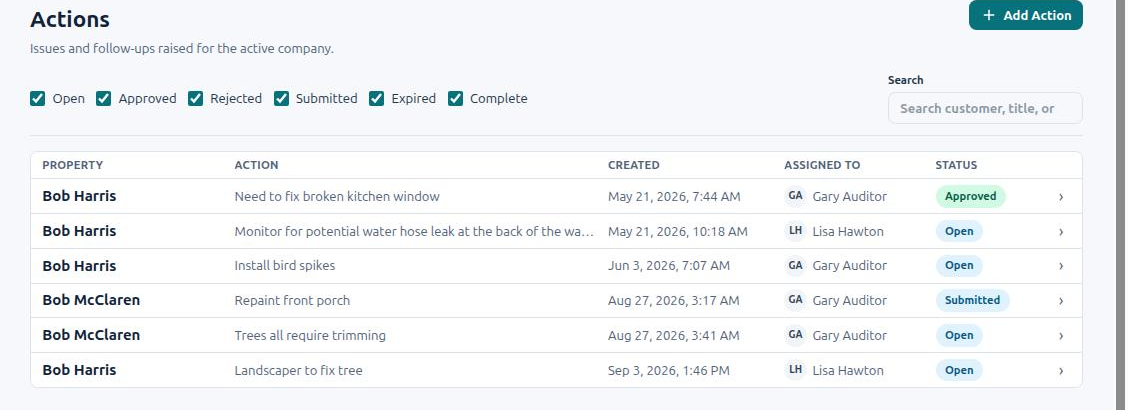
An action’s Status is one of:
| Status | Meaning |
|---|---|
| Open | Raised and not yet dealt with. |
| In Progress | Someone is actively handling it. |
| Submitted / Approved / Rejected / Expired | Workflow statuses retained for Actions synchronized from MonitorQA or SafetyCulture and for older Action workflows. These are separate from the Action’s Owner approvals section. |
| Complete | The problem was resolved. Use Resolve so HWIT records when and how it was completed. |
| Closed | The Action ended without being resolved. Use Close without resolution and record why. |
Click an action to open it. The Edit Action drawer has:
- Title and Description — what needs doing.
- Customer — the property the action belongs to.
- Vendor — pick a vendor if an outside company will do the work. With a vendor chosen you can click Create Task for this vendor, which adds a Task to the Reports/Tasks list assigned to that job; tasks created this way are listed under Tasks from this action.
- Urgent, Due Date, Assign To (one of your users) and Status. These fields control the staff mobile alerts explained in Notifications and reminders.
- Related Work — the Tasks and Reports created to deal with the Action.
- Owner approvals — request and record the owner’s decision without treating it as the Action’s status.
- Client visibility — choose whether the owner can see the Action in the Customer App and provide a client-safe summary.
- Attachments — photos, quotes or documents. Click Add File to attach one. Click Share on a file to let the owner see it in the Customer App (the Action must be shared too). Files are not shared until you do.
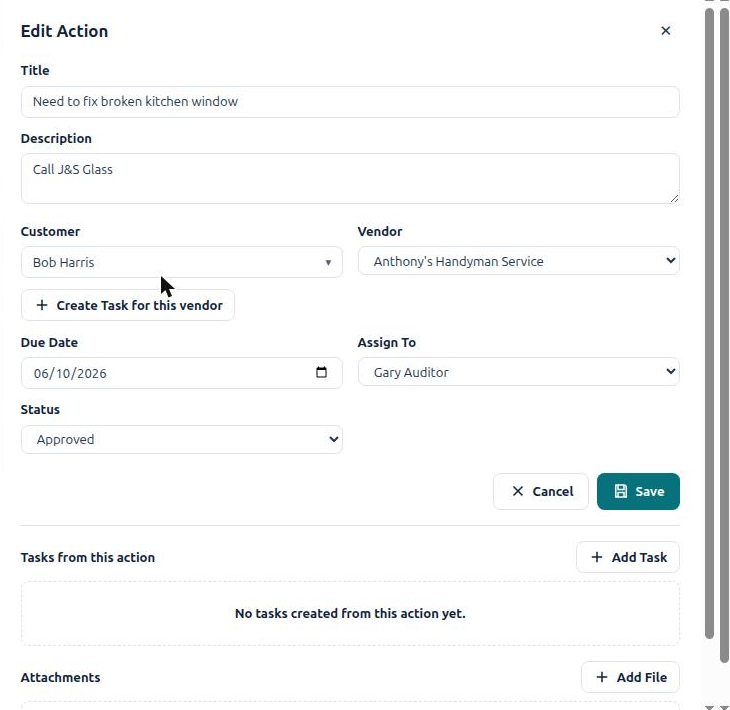
Click Save when you are done (or Create Action for a new one).
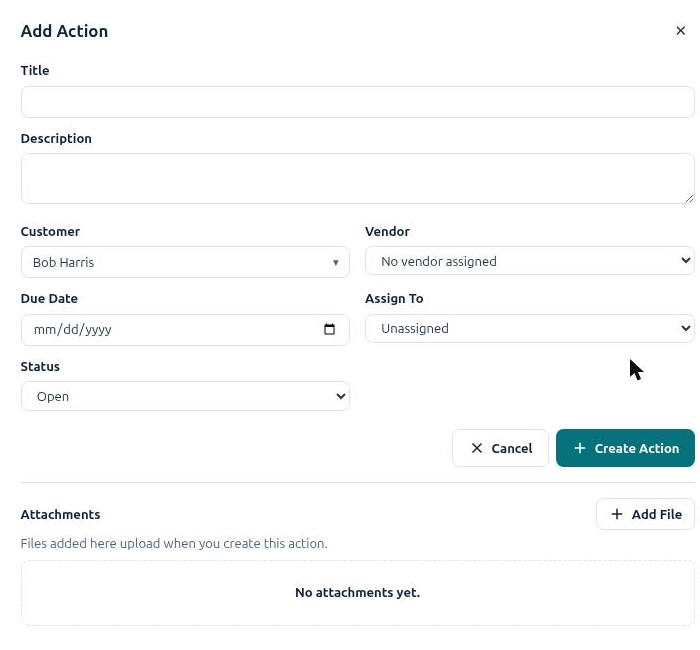
A new action uses the same form. Files you attach before clicking Create Action are uploaded as soon as the action is saved.
Actions on the property
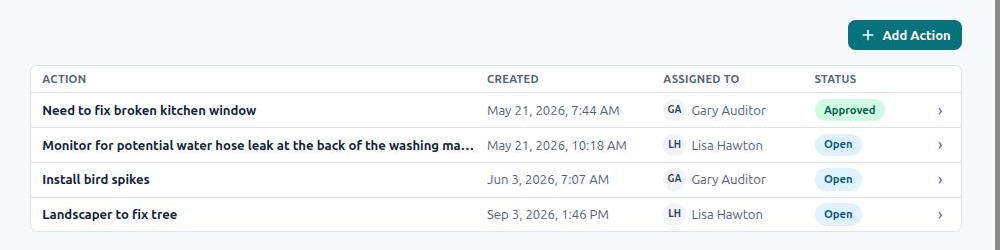
Section titled “Actions on the property”Every property also has an Actions tab that shows just that property’s actions, with the same add and edit controls — handy when you are already looking at the property.
Actions and the Customer App
Section titled “Actions and the Customer App”If your customers use the Customer App, they can see the Actions you have chosen to share with them, including the client-safe summary and any approval request. Owners cannot add or change Actions themselves—when they want to raise an issue they send you a message in the app, which arrives in Communications, and you create the Action from that conversation with Create Action.
Actions on the report
Section titled “Actions on the report”When a template’s Show Actions on Report setting is on (see Building and Managing Templates), the actions raised during a report are also printed on the client’s report.
Frequently asked questions
Section titled “Frequently asked questions”Where do actions come from? From the technician flagging an item on a question while taking a report in the mobile app, from MonitorQA or SafetyCulture corrective actions (which sync into HWIT), or from Add Action in the web app — including the one-click Create Action in Communications that pre-fills the form from a customer conversation.
Do I have to assign an action to someone? No. An Action can stay Unassigned until you decide who is handling it. Assign To selects the internal staff member responsible for the Action and the person who receives its due and overdue reminders. Vendor records the outside company involved; choosing a vendor is not a substitute for assigning an internal reminder recipient.
How do I get the work onto a technician’s or vendor’s daily list? An Action tracks the issue and can send the mobile alerts explained above, but it does not appear on the Reports/Tasks list by itself. Open the Action and click Create Task for this vendor (or Add Task under Tasks from this action) to put real work on the schedule. The Task stays linked to the Action so you can see both sides. Only Admin and Full Access users can create Tasks.
Will an Action send an email or text reminder to my staff? No. Urgent, due-today, overdue and approval-decision alerts for staff are mobile push notifications through the Home Watch IT mobile app. See Notifications and reminders.
Why did an Action not send a due-date reminder? Check that it has a Due Date, is assigned to a user, and is still open. The assigned user must also be signed in to the mobile app on the phone and allow its notifications.
Is “change the furnace filter in three months” an action or a task? A task — it is planned work with a date. See Action or Task? above.
What do the statuses mean, and which should I use? Start a new item as Open, move it to In Progress when someone is handling it, and use Resolve when the problem is fixed. Use Close without resolution when it will not be fixed and record the reason. Submitted, Approved, Rejected and Expired remain available for synchronized reporting-system and older workflows, but an owner approval requested in HWIT is recorded separately under Owner approvals. Use the tabs and the Status filter at the top of the Actions screen to see only the ones you are working on.
Can my customers see or change actions? Owners who use the Customer App can see the Actions you choose to share with them. They cannot add or change Actions themselves—they raise an issue by messaging you in the app, which lands in Communications.
Can I attach the vendor’s quote or a photo? Yes. Open the action and use Add File under Attachments. Files added while creating an action upload when you click Create Action.
Can actions print on the client’s report? Yes, for HWIT Reporting templates — turn on Show Actions on Report in the template’s Report Settings.
Where are actions for one property? On the property’s Actions tab, and on a vendor’s Actions tab for everything linked to that vendor (HWIT Reporting companies only).