
Managing Subscription Billing
Subscription billing in HWIT Fundamentals allows you to create a contract with your client for a set monthly fee in exchange for a specific bundle of services.
Example: You charge a customer $400/month, which includes weekly home visits and 3 hours of concierge time. Any services exceeding these limits are automatically billed as additional line items.
The Two Components of Subscription Setup
Section titled “The Two Components of Subscription Setup”To manage this process automatically, you only need to define two things:
- The Monthly Charge: What the client pays every month.
- Included Services: The specific service limits covered by that fee.
Step 1: Setting the Monthly Charge
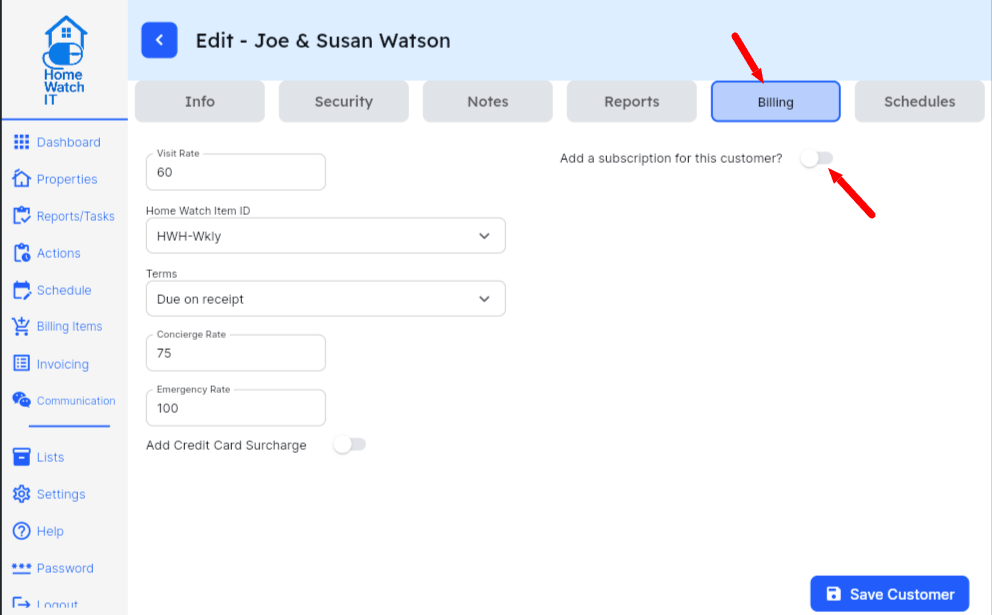
Section titled “Step 1: Setting the Monthly Charge”First, navigate to the client’s Property Screen and select the Billing tab.
- Enable Subscription: Toggle the “Add a Subscription” switch to ON.
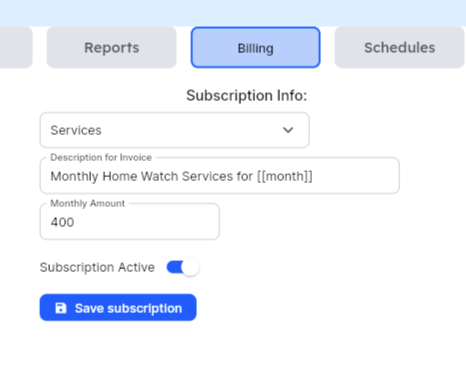
- Define the Billing Item: Select the service item (e.g., “Monthly Services”) and enter the amount (e.g., $400).
- Use Dynamic Descriptions: In the invoice description, use the variable [[month]].
- Example: “Monthly Home Watch Services for [[month]]” will automatically generate as “Monthly Home Watch Services for April.”
Step 2: Defining Included Services
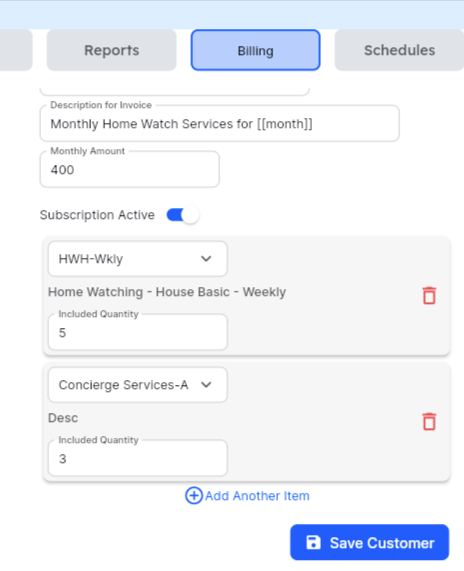
Section titled “Step 2: Defining Included Services”Once the monthly fee is saved, define exactly what the client gets for that price. In our example, we will include all home visits and 3 hours of concierge time.
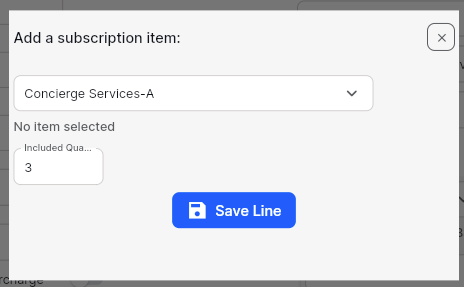
- Add Included Items: Click Add Another Item.
- Set Limits: Use the popup to set specific limits, such as “3 hours” for Concierge time.
- Flexible Tracking: You can add as many items as needed, such as auto-starting or plant watering, each with its own specific included quantity.
How Invoicing Works Automatically
Section titled “How Invoicing Works Automatically”You continue entering your billable items and home visits as you normally would. When the invoice is generated, the system does the math for you:
- It adds the Monthly Subscription line item.
- It lists all performed services but applies a credit for the “Included” portions.
- Any overages are left as remaining billable totals.
Scenario: If you perform 5 hours of concierge work in a month:
- The invoice itemizes all 5 hours.
- A credit is applied for the 3 hours included in the subscription.
- The client is only billed for the remaining 2 hours.
Q: What happens if I don’t use all the included hours in a month? A: By default, subscription limits are “use it or lose it” for the billing period. The system resets the counter when the next subscription invoice is generated. Q: Can I include different types of services in one subscription? A: Yes. You can add as many individual lines to the “Included Services” component as you like, such as 4 Home Visits AND 2 hours of Handyman services. Q: What if I need to change the price mid-contract? A: You can update the “What to bill” component at any time. The next time an invoice is generated, it will pull the new rate automatically. Q: Does the system bill the subscription in advance or arrears? A: The system generates the subscription line item at the time of invoicing. You can manage the timing based on when you choose to run your billing cycle.
Audit Your Limits: Periodically review your “Included Items” list. If a client consistently goes over their concierge hours, it may be a great opportunity to suggest moving them to a higher subscription tier.