
Intro to Leads
A lead is someone who asked about your service but is not a customer yet. Leads keeps all of them in one list, so nobody slips through the cracks.
Leads arrive from your website or by email. You can also add one yourself, for example after a phone call. When the person signs up, you turn the lead into a property with one click.
Only Admin and Full Access users see Leads.
The Leads list
Section titled “The Leads list”Click Leads in the menu. It is directly below Communications. The number beside it is how many New leads are waiting.
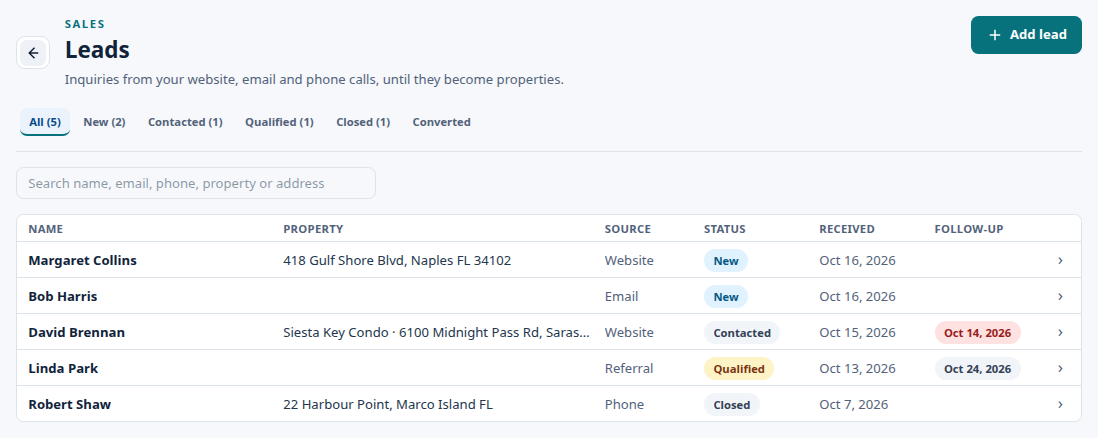
- The tabs at the top show leads by status.
- Type in the search box to find a lead by name, email, phone, property or address.
- A red follow-up date means the date has passed.
- Needs review means you should check the lead. Either it is missing something, such as an email or phone number, or it was read by AI from a forwarded email. Open it, check the details and click Save. Saving clears Needs review.
Add a lead yourself
Section titled “Add a lead yourself”Step A: Open a new lead
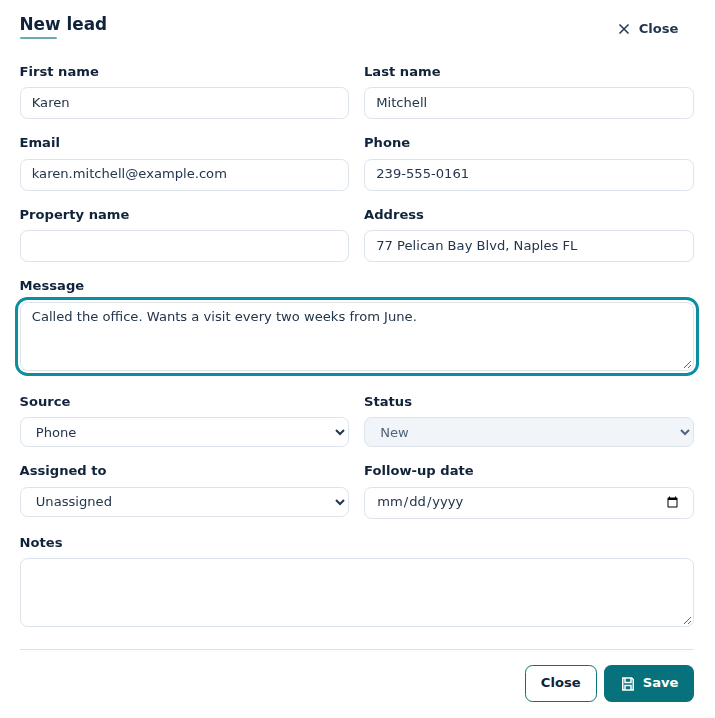
Section titled “Step A: Open a new lead”Click Add lead.
Step B: Fill in what you know
Section titled “Step B: Fill in what you know”Enter a First name and either an Email or a Phone number. Everything else is optional.
Pick a Source, such as Phone, Referral or Real Estate Agent, so you know where the lead came from.
Step C: Save
Section titled “Step C: Save”Click Save. The lead appears in the list as New.
Work a lead
Section titled “Work a lead”Step A: Open the lead
Section titled “Step A: Open the lead”Click the lead in the list.
Step B: Update it as you go
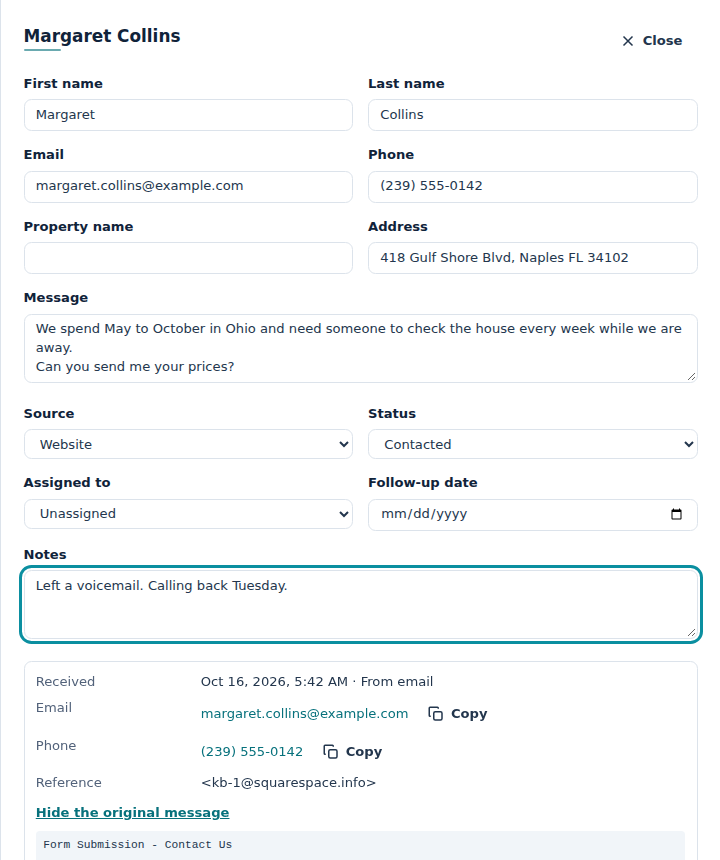
Section titled “Step B: Update it as you go”- Change the Status as things move along. For example, Contacted after your first call.
- Choose who is looking after it in Assigned to.
- Set a Follow-up date so you remember when to get back to them. You get a reminder email that morning (see below).
- Write what happened in Notes.
Step C: Save
Section titled “Step C: Save”Click Save.
When the person becomes a customer, see Converting a Lead into a Property. If they decide not to go ahead, set the status to Closed.
Leads from your website or email
Section titled “Leads from your website or email”A lead from your website or email shows what the person typed. Click Show the original message to see the whole email or form.
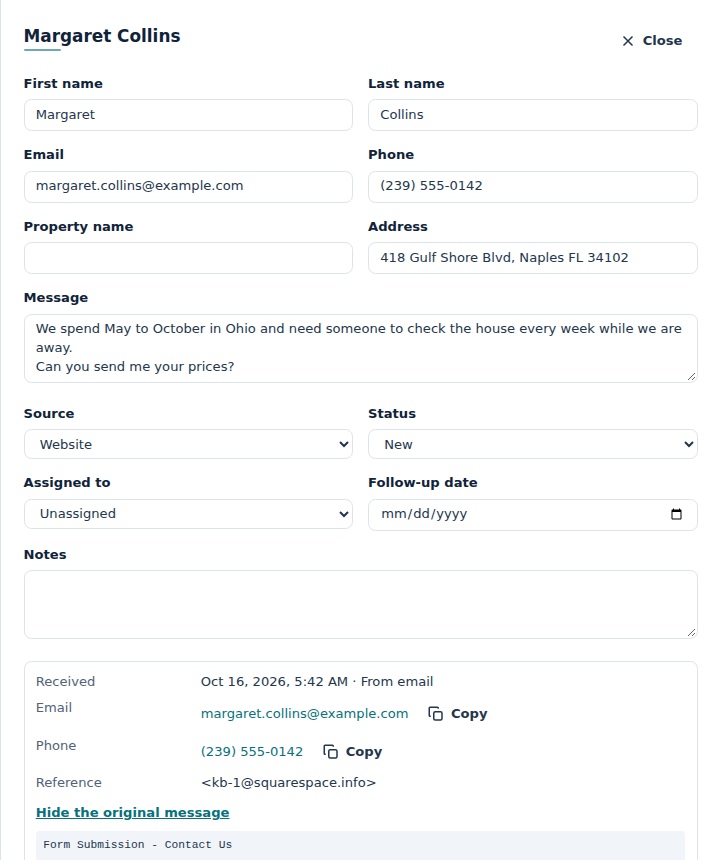
When a lead arrives this way, your company’s primary user gets an email with a button to open it. A lead you add yourself does not send an email.
If you forward an inquiry email that is not from a form, Home Watch IT reads it with AI and marks the lead Needs review. Open it, check the details and click Save.
To set this up, see Getting Website Inquiries into Leads.
Follow-up reminders
Section titled “Follow-up reminders”On the morning of a lead’s Follow-up date (about 7am, your company’s time), Home Watch IT sends a reminder email.
- It goes to the person in Assigned to. If nobody is assigned, it goes to your company’s primary user.
- Each person gets one email listing all their leads due for follow-up that day.
- Closed and Converted leads are skipped.
- It is sent once, on that date. To be reminded again, change the follow-up date.
You can change the wording of this email. It is the Lead follow-up reminder template. See Email Templates.
- A red follow-up date means the date has passed. Check the list for red dates.
- Only an Admin can delete a lead. Open it and click Delete. Deleting a lead does not affect a property it was converted to.
- A lead is not a customer. It does not appear on your schedule, invoices or reports until you convert it.
Frequently Asked Questions
Section titled “Frequently Asked Questions”I can’t see Leads in the menu. Leads is for Admin and Full Access users only. Ask your Admin to check your user role.
Who gets the “New lead” email? Your company’s primary user. If there is no primary user with an email, it goes to the company email address.
Can I change the “New lead” email? Yes. It is the New lead received template. See Email Templates.