
The Scheduling Calendar
The Scheduling page has three tabs: Schedules (the recurring schedules themselves — see Adding a Schedule), In Residence (see In Residence Processing) and Calendar. The Calendar tab shows the reports and tasks the schedules have generated, plus any one-off reports, so you can see the whole team’s workload at a glance.
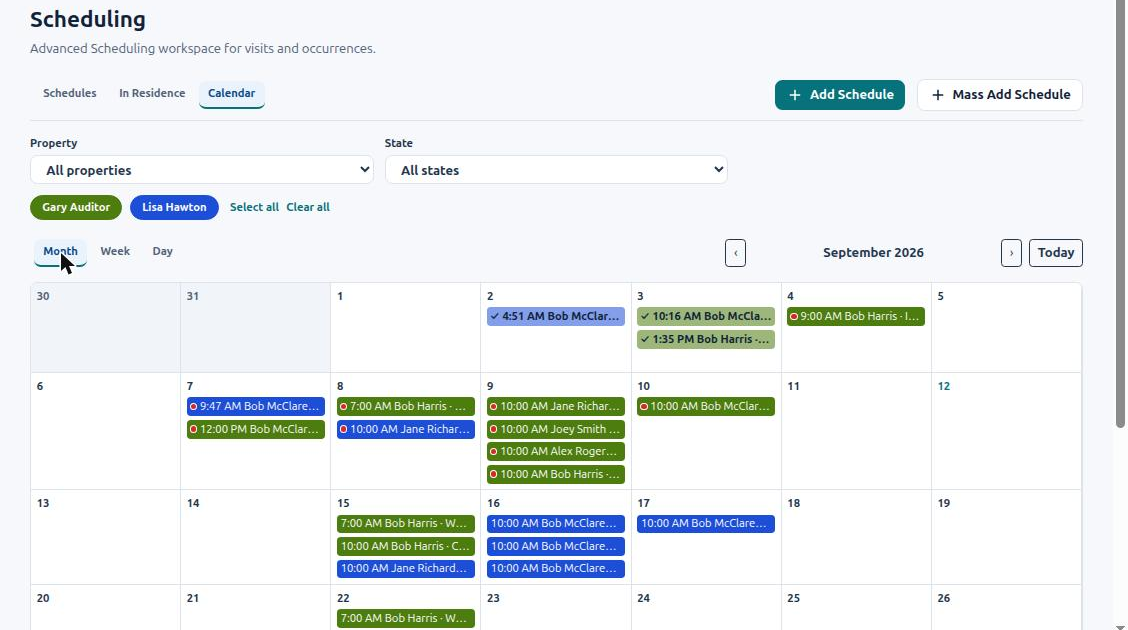
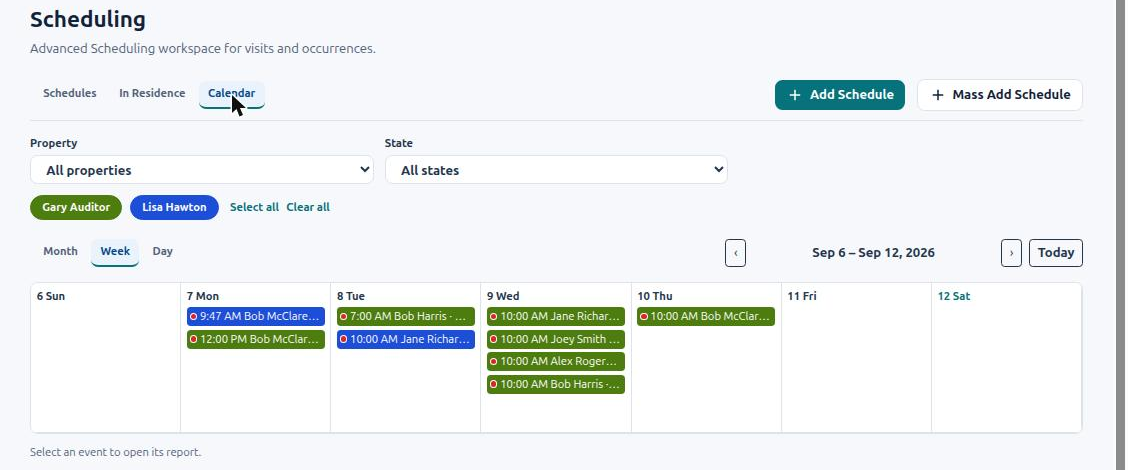
Switch between Month, Week and Day at the top of the calendar, and use the arrows or Today to move around. Each visit appears as a pill in its technician’s color.
- Month — one pill per visit, the classic wall-calendar view. Good for spotting gaps and heavy days.
- Week — seven columns, useful for balancing the week between technicians.
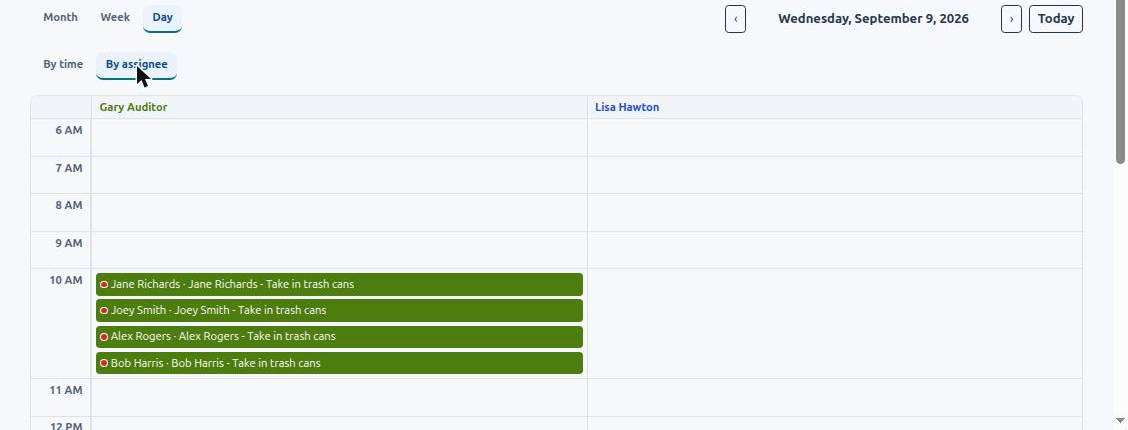
- Day — the day’s visits laid out either By time (an hourly grid; visits with no start time sit in a No time row at the top) or By assignee (one column per technician). Use the Day layout switch to choose.
Filtering by technician
Section titled “Filtering by technician”Above the calendar is a chip for each technician, in that person’s color. Click chips to show or hide their visits; Select all and Clear all do what they say. In the Day view’s By assignee layout, the columns are the technicians you have selected, so choose at least one.
Every technician always gets the same color, on the chips and on the calendar, so you learn who is who quickly. Red is never used for a technician — a red dot on a pill means the visit is past due.
Opening a visit
Section titled “Opening a visit”Click a pill to open that report or task. From there you can edit it, reassign it, or mark a task complete exactly as you would from the Reports/Tasks list. Changing a single visit never changes the schedule behind it — see Editing the Current Report of a Schedule.
Drag and drop
Section titled “Drag and drop”Press and drag a pill to move it:
- In Month and Week views, drop it on another day to move the visit to that date.
- In the Day view’s By time layout, drop it on another hour to change its start time.
- In the Day view’s By assignee layout, drop it in another technician’s column to reassign it (or on another hour in that column to do both at once).
The change is saved immediately as a single edit to that report. It works with a mouse and on an iPad. A drag that ends outside the calendar is cancelled.
If you need to move or reassign a whole day of visits, use Move day / Reassign day on the Routing tab instead — see Route Planning.
What the calendar shows
Section titled “What the calendar shows”The calendar shows visits that have already been generated by your schedules — that is, out to your Report Creation Horizon (60 days by default). Beyond that the calendar is empty even though the schedules continue; see Report Creation and Visit Form Horizons if you want to plan further ahead. In Residence blocks are respected automatically.
Tip: picking dates and times
Section titled “Tip: picking dates and times”Wherever you enter a date or time in the web app — on a schedule, a report or an In Residence entry — clicking the field opens a calendar picker or a clock-face time picker. You can also type the value directly.
Sharing the schedule outside HWIT
Section titled “Sharing the schedule outside HWIT”To see the same visits in Outlook, Google Calendar or Apple Calendar, subscribe to your calendar link — see Calendar Integration.