
Adding or Updating a User / Account Info
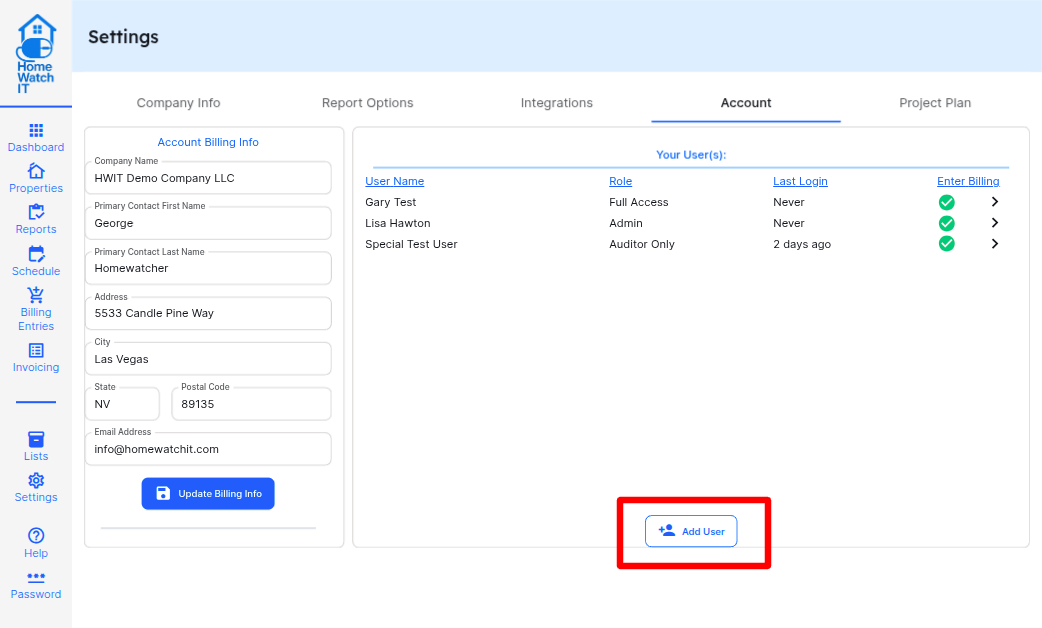
To add or delete a User, navigate to your Settings screen and select the Account tab. You’ll see the existing list of users on the account and can edit the names or roles by selecting the > icon.
The Account tab includes general information about your company and your account with Home Watch IT. It also includes your subscription payment information and a place to change your payment information should you need to update it in the future.
To delete a user, select the user by pressing the > icon, then click Delete. You will be asked (twice) to confirm the deletion. As soon as you confirm it the user will no longer be able to log into HWIT and their account from the reporting application will also be deleted. Please note that the user list may not immediately reflect the user as deleted as it takes a minute for all the deletion processes to complete.
To add a user, click on the Add User button located below the user list.
Enter the information requested. It is very important to make sure that the email address is entered correctly as that is used for login purposes.
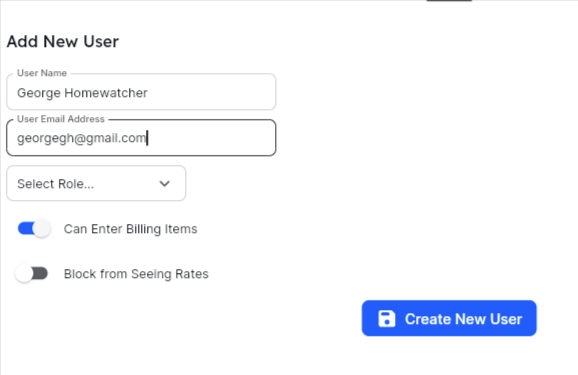
You need to select a “Role” that gives the user various permissions. The roles are defined as follows:
Admin: is the user that can do anything on the account (set up integrations, add users, change billing information, etc.) It is recommended that only the primary user be made an Admin.
Full Access: gives the user the ability to enter or update any information in the system. This user does not have access to the Settings screen and cannot make updates that affect the entire system — but are able to make any updates to customers, schedules, billing entries, etc.
View Only: is used for “technician” users who need to have access to the data, but not have the ability to change the data.
Auditor Only: This user will be able to log into the HWIT app and conduct a report — they can only display customer information for the customer they are currently performing a report on and will have no other access within the app itself. If you are using MonitorQA or SafetyCulture, an Auditor Only user is a user who cannot log into the HWIT application at all, but only has access to log into the reporting application to perform a report (MonitorQA or SafetyCulture). They will not have access to any of the confidential data in HWIT, only the ability to conduct a report.
In addition to the Role, you can also turn on/off the ability for the user to enter Billing Items. By default that is ON for all users (even View Only so that they can record hours).
The next switch on the screen allows you to control if the user is able to See Rates or not. By default, all users can see rate or pricing information, but if you want to hide that from a particular user you can turn this switch ON. The user will not see any pricing or rate information and will not have access to the Invoice screen.
Once you enter the information press the Create New User button. The system will confirm the user addition as well as confirm that you want to increase your subscription for the new user costs. Once confirmed the system will generate the new user and they will receive (within 30 seconds) emails to log into HWIT and the reporting application. (Note: Currently SafetyCulture users may have up to 24 hours before receiving the email to log into the SC application. They will still receive the HWIT email immediately.)
You can update a user to easily change their User Name, User Role, ability to enter Billing Items, and if they have access to reporting. Just make the changes and hit Save.
Updating the user’s email is a little bit bigger process, so use it with caution. In order to change the user’s email you will first need to unlock the user email field by clicking the padlock icon. It will turn green letting you know it is unlocked. Once unlocked you can then change the email address and press Save in order to process the change. It can take a few seconds to update all of the security files to reflect the change (as they are all tied to the user’s email address). Once completed, the user wil be able to log in with the updated address.