
Advanced Template Editing: Conditions, Attributes and Pre-fill
This article covers three extras for your report templates. New to templates? Start with Building and Managing Templates.
- Conditional Questions — show a question only after a certain answer.
- Property Attributes — show a question only at homes that have something, like a pool.
- Pre-fill from Property — fill a question in with details you already saved, like the gate code.
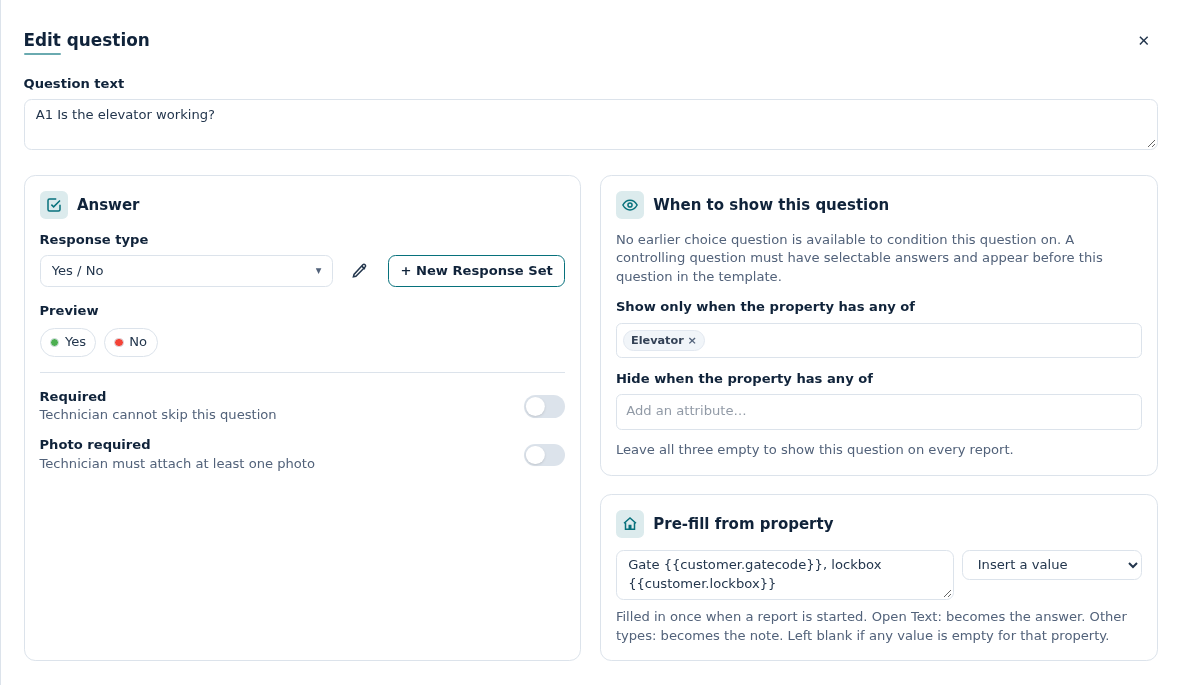
All three are set in the Edit question panel (click the pencil beside a question). Changes save as you make them.
Conditional Questions
Section titled “Conditional Questions”What it does
Section titled “What it does”A conditional question stays hidden until an earlier answer calls for it. The technician never has to skip past questions that don’t apply.
Example: Is there a pool? → Yes shows Pool water level checked and Pool equipment running. No keeps them hidden.
You can do this for a single question or a whole section. It also works with a Display Only question: Irrigation clock changed for the season? → Yes shows the seasonal watering chart.
How to set it up on a question
Section titled “How to set it up on a question”- Click the pencil beside the question you want to hide.
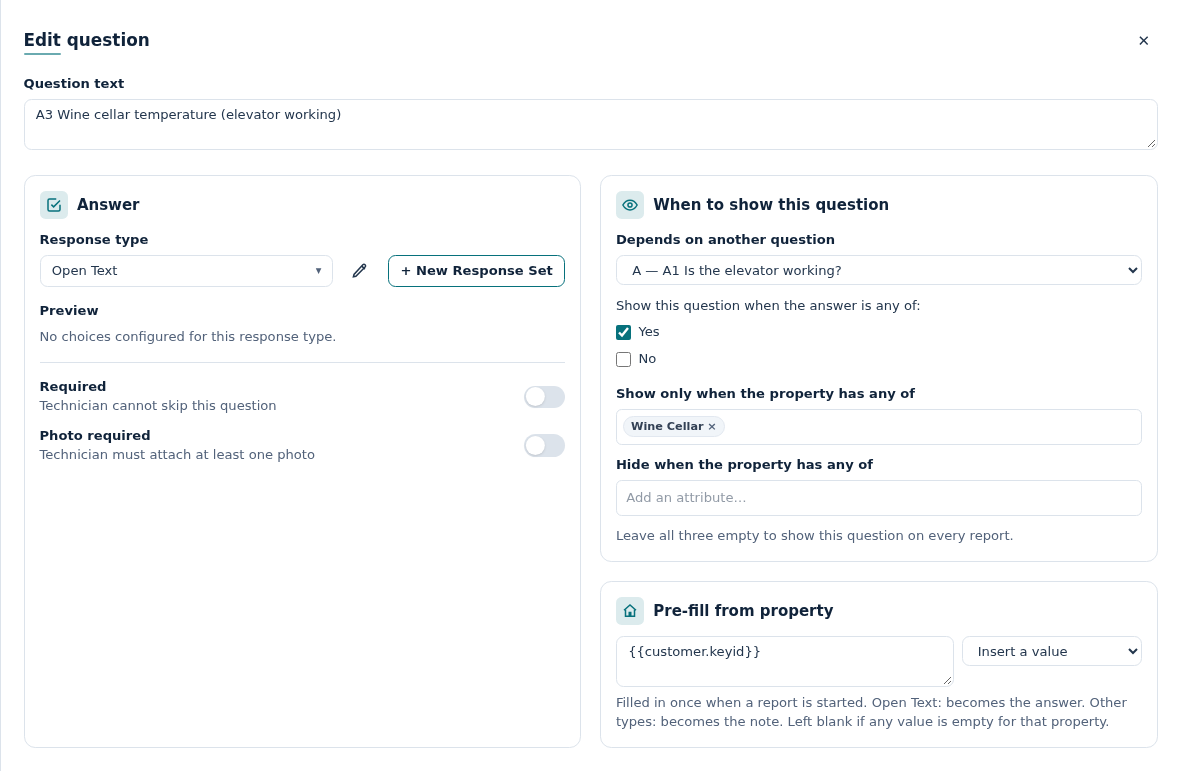
- In the When to show this question card, open Depends on another question. It says Always show until you set a rule.
- Pick the earlier question that decides it. Only questions that can be used are listed, closest first.
- Under Show this question when the answer is any of:, tick one or more answers.
To remove the condition, choose Always show again.
How to set it up on a section
Section titled “How to set it up on a section”Hiding a section hides every question inside it.
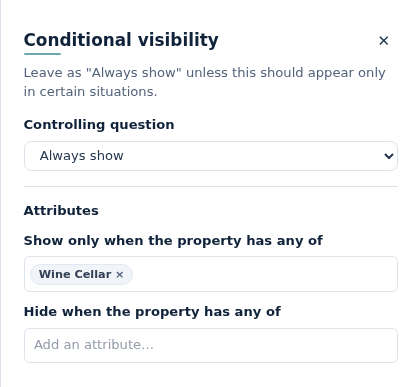
- In the Sections list, click the ◆ diamond beside the section. The Conditional visibility panel opens.
- Pick the Controlling question and tick the answers, the same as above.
Tip: Use a section condition when a whole area may not apply — a pool, a guest house, a boat dock. Use a question condition for a single follow-up.
Which questions can control another?
Section titled “Which questions can control another?”The editor only offers valid choices. If a question is missing from the list, this is why:
- It must have a list of answers — Checklist, Yes/No, Pass/Fail, Multiple Choice or Multi-Select. Open Text and Display Only can’t control anything. (With a Multi-Select, the question shows when any of the chosen answers is one you picked.)
- It must come earlier — in an earlier section, or higher up the same section.
- No chains. The controlling question can’t itself be conditional, or sit in a conditional section. One level only.
- At least one answer must be ticked. Otherwise the question would never show.
Good to know
Section titled “Good to know”- For the technician: the question appears the moment they give the right answer. Hidden sections drop out of the tabs, and Next/Previous skips them.
- Not answered yet, or skipped? The follow-ups stay hidden.
- Hidden Required questions don’t block the Complete Report button. Only visible questions must be answered.
- Works offline. No signal needed.
- For the client: hidden questions never appear on the report — no blank rows, no empty headings. A Display Only note inside a hidden group hides too.
- Changed answer? If the technician answers a follow-up and then changes the first answer so it hides, their answer is kept but left off the report. Change it back and it returns.
- You can spot conditions at a glance. Conditional questions show a ◆ before their text, and a conditional section’s ◆ is highlighted. Hover over it to see the rule.
- Moving questions can clear a rule. If you drag a question above the one that controls it, the condition is removed and a message tells you how many. The question then always shows.
- Deleting the controlling question clears every condition that used it. Those questions go back to always showing.
- Set conditions last. Finish putting questions in order first, so a later drag doesn’t clear your rules.
- Finished reports never change. A report keeps the questions it had when it was completed.
Showing Questions by Property Attributes
Section titled “Showing Questions by Property Attributes”What it does
Section titled “What it does”An attribute is a label you put on a property, like Pool, Elevator or Wine Cellar. A question or section can then show only at properties with (or without) that label.
Example: one template has an elevator question and a wine cellar section. A property tagged Elevator and Wine Cellar gets both. A property with neither never sees them. You don’t need a separate template for every kind of home.
How to set it up
Section titled “How to set it up”Step 1 — Label the property
- Open the property and go to the Reports tab.
- In the Attributes card, type a name and pick it from the list — or type a new one to create it.
See The Property Screen.
Step 2 — Add the rule to a question
- Click the pencil beside the question.
- In the When to show this question card, use one or both boxes:
- Show only when the property has any of — shows the question only at properties with at least one of these attributes.
- Hide when the property has any of — leaves the question out at properties with any of these attributes.
- Type a name and pick it from the list. You can also type a new name here, before any property uses it.
To show the question on every report, leave Depends on another question on Always show and both attribute boxes empty.
Or add the rule to a section
- Click the ◆ diamond beside the section.
- The Conditional visibility panel has the same two boxes under Attributes.
Preview for property
Section titled “Preview for property”Want to check what one property will get?
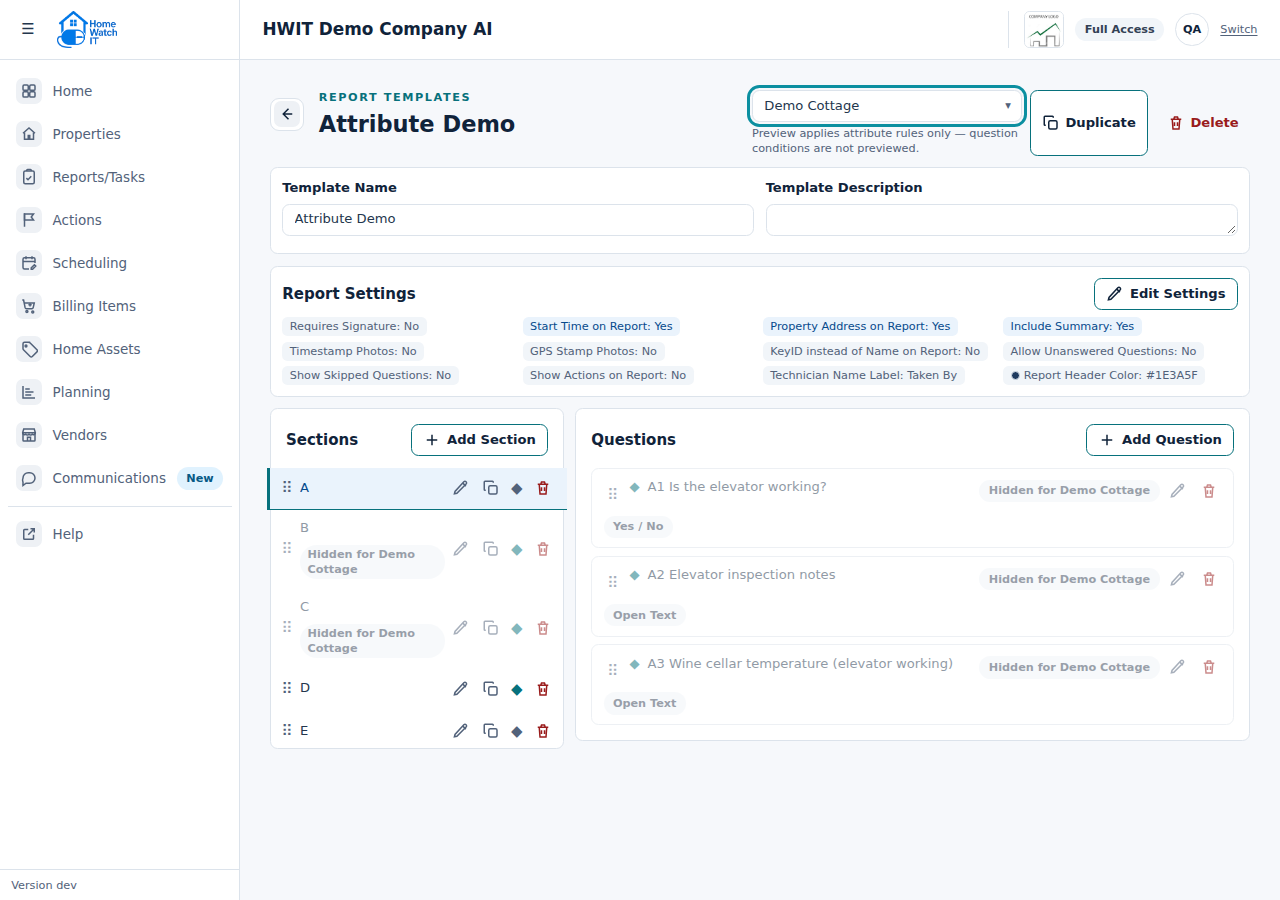
- At the top of the template editor, click Preview for property…
- Pick a property. Everything it would not see is greyed out, labelled Hidden for property name.
- Clear the box to go back to normal. Nothing is saved.
The preview only uses attributes. It can’t show conditional questions, because the answers aren’t known until the visit.
Good to know
Section titled “Good to know”- No attributes = no “Show only when” items. A Pool section set to Show only when the property has any of: Pool is skipped at every property without Pool.
- Both boxes together: the property must have one of the “show” names and none of the “hide” names.
- Attributes plus Depends on another question: when both are set, both must be met.
- Capitals don’t matter, spelling does. elevator and Elevator are the same; Elevators is different. Pick names from the list instead of retyping them.
- One shared list for your company. It holds every attribute used on a property or a template. There is no rename yet — remove the old name and add the new one wherever it is used.
- Hiding a section hides all its questions. A hidden Required question never blocks Complete Report.
- Answers are never hidden. If a question (or anything in a section) was already answered, it stays on the report, even if you remove the attribute later.
- When the rules apply: on the phone while the report is taken, and again when it is completed and the client’s PDF is made. Hidden items never reach the client.
Important: Technicians need version 1.9.6 or later of the HWIT mobile app. Older versions ignore attributes and show every question and section. Make sure your team has updated first.
Pre-fill from Property
Section titled “Pre-fill from Property”What it does
Section titled “What it does”A question can fill itself in from the property’s details when the technician starts the report. They arrive with the information already there instead of looking it up.
Example: you type Owner requests temp of: and add the property’s Thermostat Setting note. At a home where the note says 72°F, the technician sees Owner requests temp of: 72°F.
How to set it up
Section titled “How to set it up”-
Click the pencil beside the question.
-
In the Pre-fill from property card, type your text, for example:
Owner requests temp of: {{note.thermostat_setting}} -
Use Insert a value to drop in a detail where your cursor is, instead of typing it. It has four groups:
- Report — Report Title, Auditor Hint, Vendor Name, Assignee Name (from the report or task itself — needs mobile app 1.9.6 build 101 or later).
- Property — Property Name, Property Address, Mailing Address, Route, Visit Frequency, Terms.
- Access & security — prints on the client report — Key ID, Gate Code, Lockbox, Alarm Disarm, Alarm Arm, Alarm Provider, Alarm Company Phone, Alarm Password, Alarm Notes.
- Notes prompts — one entry for each of your Notes Prompts.
-
Click away from the box. It saves by itself.
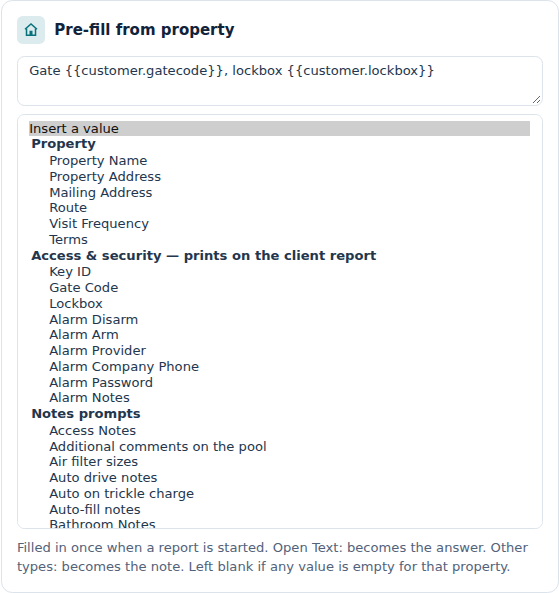
What the double braces mean
Section titled “What the double braces mean”Insert a value writes each detail in double braces. You can type them yourself too:
{{note.<prompt>}}— the property’s answer to a Notes Prompt. Use the prompt’s name in lower case, with spaces and punctuation changed to_. Thermostat Setting becomes{{note.thermostat_setting}}. Forms and Agreements use the same thing.{{customer.<field>}}— a detail from the property record, such as{{customer.gatecode}}or{{customer.keyid}}.{{report.<field>}}— a detail from the report or task itself:{{report.title}},{{report.auditorhint}},{{report.vendorname}},{{report.assigneename}}. Handy for a task raised for a vendor: Vendor on site: {{report.vendorname}}.
Plain text with no braces works too. It is written as-is — handy for a standard note on every report.
What the technician gets
Section titled “What the technician gets”- Open Text questions: the text becomes the answer. It counts as answered, and the technician can still change it.
- All other types (Yes/No, Checklist, Pass/Fail, Multiple Choice, Multi-Select): the text goes into the question’s notes. The technician still picks the answer.
Good to know
Section titled “Good to know”- Filled in once, when the technician first opens the report. Changing the property’s notes later doesn’t change a report that has already been started.
- All or nothing. If any detail is empty for that property — or misspelt — nothing is written for that question. Your client never gets Owner requests temp of: with nothing after it.
- Pre-fill beats Copy Report. If the technician copies the last report, pre-filled questions get the fresh value from the property. Other questions keep their copied answers.
- Hidden questions: a question or section hidden by an attribute is not pre-filled. A question waiting on Depends on another question is pre-filled, so the text is ready when it appears.
- Codes print on the client report. A gate code, lockbox or alarm detail becomes part of the answer or note, so the client sees it. Only use those where you’re happy for the client to see them.
- Complete with AI keeps the note, unless the AI suggests a note of its own for that question. See Completing a Report with AI.
- Not on Display Only questions. The Pre-fill from property card doesn’t appear there.
Important: Pre-fill also needs version 1.9.6 or later of the HWIT mobile app. Older versions start the report without filling anything in.
Frequently Asked Questions
Section titled “Frequently Asked Questions”I added Pool to a property but the pool section still doesn’t show — why? Check two things. The spelling must match exactly (Pools is not Pool). And the technician needs mobile app 1.9.6 or later. Use Preview for property… to check what that home should see.
Do I need a separate template for homes with elevators? No. Add an elevator question with Show only when the property has any of: Elevator, then give those properties the Elevator attribute. One template covers every home.
What if the gate code is empty? Nothing is written for that question. HWIT never leaves half a sentence like Gate code: with nothing after it.
Will the client see the alarm code? Yes, if you pre-fill it. Pre-filled text is part of the answer or note, and those print on the client’s report. Only use codes where you’re happy for the client to see them.
Why didn’t the pre-fill update when I changed the note? Pre-fill happens once, when the technician first opens the report. A report that was already started keeps the old text. The next new report gets the new note.
Does this work on the old app version? No. Attributes and pre-fill need mobile app 1.9.6 or later. Older versions show every question and fill nothing in. Ask your team to update the app.
Why can’t I pick a certain question in “Depends on another question”? It must come earlier in the template, have a list of answers (not Open Text or Display Only), and not be conditional itself.
My condition disappeared after I moved a question. What happened? A question can only depend on one that comes before it. Dragging it above its controlling question clears the rule. Put the questions back in order and set the condition again.
If I remove an attribute, will old answers vanish from a report? No. A question that was already answered always stays on the report.
Can I pull in the vendor’s name or the auditor hint? Yes. Pick them from the Report group in Insert a value — Report Title, Auditor Hint, Vendor Name or Assignee Name. If the report has no vendor, a line like Vendor: {{report.vendorname}} is simply left out. The technician’s app must be 1.9.6 build 101 or later.