
Converting a Lead into a Property
When a lead signs up, you don’t need to type everything again. Convert creates the property and its homeowner contact from the lead.
Step A: Open the lead and click Convert
Section titled “Step A: Open the lead and click Convert”Open the lead from the Leads list. Click Convert.
If you changed anything on the lead, click Save first.
Step B: Choose where the lead goes
Section titled “Step B: Choose where the lead goes”A new customer: choose Create a new property. The property name, address and contact are filled in from the lead. Check them and fix anything that is wrong.
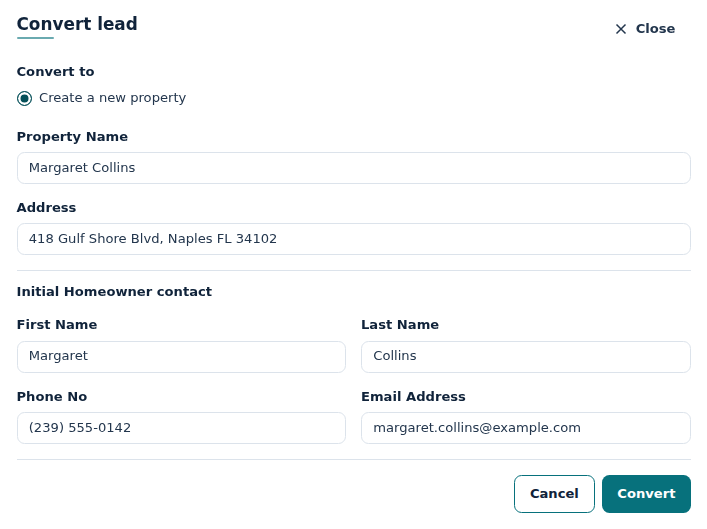
Someone you already look after: Home Watch IT looks for a property with the same name, address, email or phone. If it finds one, it is listed under Or add to an existing property, with what matched.
Pick the property. Then choose:
- Use this contact if the person is already a contact there. Their contact details are not changed.
- Add as a new contact if they are someone new at that property.
Nothing is merged unless you pick it.
Step C: Click Convert
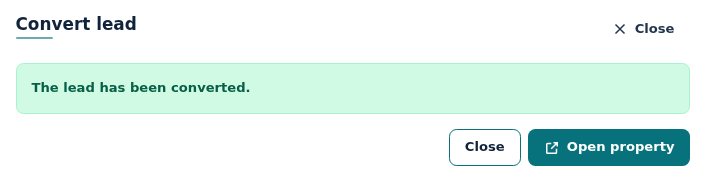
Section titled “Step C: Click Convert”Click Convert. When it says The lead has been converted, click Open property to go straight to it.
Now set up the property as usual: schedules, billing and so on. See The Property Screen.
After converting
Section titled “After converting”The lead stays in the list under Converted. It keeps the original message and your notes, and links to the property with Open property.
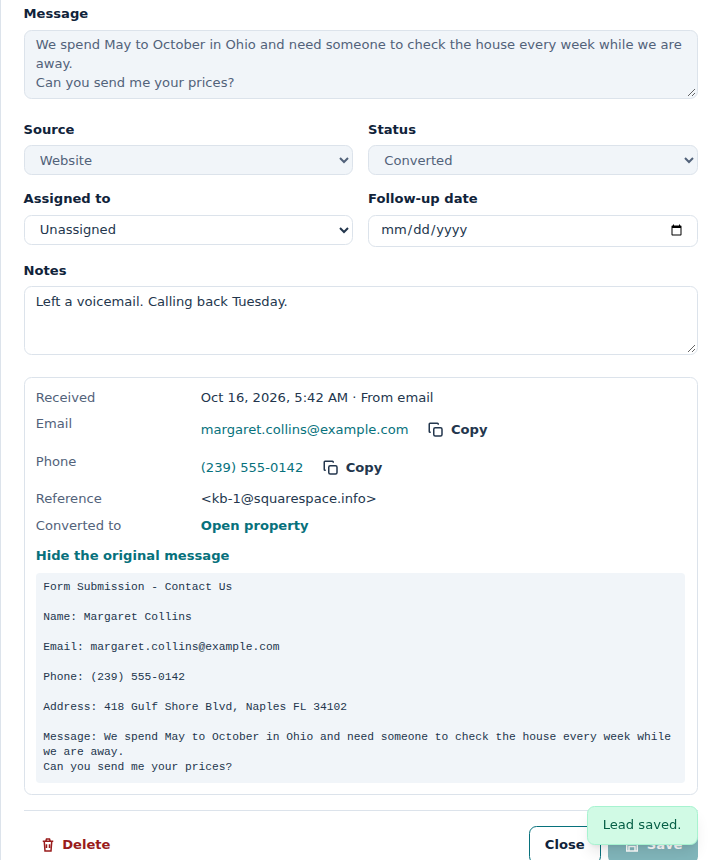
You can still change Assigned to, Follow-up date and Notes. Everything else is locked, so the record of what the person first asked for stays the same.
Frequently Asked Questions
Section titled “Frequently Asked Questions”It says “A property with this name already exists.” Change the Property Name to something different, such as adding the street, and click Convert again.
Something went wrong. Was half of it created? No. Either everything is created or nothing is. Your typing is kept so you can try again.
Can I undo a conversion? No. If it was a mistake, delete the property or contact as you normally would. An Admin can then delete the lead.