
Intro to Rentals
If you look after short-term rentals as well as seasonal homes, you know the rhythm. Guests leave at ten. Housekeeping goes in. Someone checks the place before the next arrivals at four. Repeat, sometimes several times a week, across a lot of doors.
Rentals lets Home Watch IT keep that rhythm for you. You describe once what normally happens around a stay, then add each Booking, and the app puts the right work on the schedule. There is no separate rental system to learn. The work it creates is made of the same Tasks and Reports you already use, so it shows up on the calendar, on routes, in the vendor portal, and on invoices like everything else.
A few words you will see
Section titled “A few words you will see”| Word | What it means |
|---|---|
| Booking | A guest stay: who is coming, when they arrive, and when they leave. |
| Turnover Plan | The work a property normally needs around every stay. Set once per property. |
| Turnover | That work, created for one particular Booking. |
| Step | One item in a Turnover Plan, such as Housekeeping, checkout + 30 min. |
| Check-in / Checkout | The property’s usual arrival and departure times. Each Booking can differ. |
| In Residence | The owner staying at their own property. This is not a Booking. |
How it fits together
Section titled “How it fits together”- Switch Rentals on for your company in Settings. This is a one-time step.
- Turn Rentals on for a property and set its usual check-in and checkout times.
- Build the Turnover Plan: the steps that happen around every stay.
- Add a Booking. The plan creates the Tasks and Reports for that stay.
- Work the day from the calendar, routes, or the Rentals view, just like any other work.
That is the whole thing. The rest of this article walks through each step with an example.
Before you start: switch Rentals on for your company
Section titled “Before you start: switch Rentals on for your company”Rentals is off until you switch it on. Until then, properties have no Rentals tab.
A. Go to Settings, then the Company Info tab.
B. Turn on This company manages short-term rentals.
C. Open any property. It now has a Rentals tab.
You only do this once. Only an Admin can change it.
Turning it off again hides Rentals. Nothing is deleted.
1. Setting up a property for Rentals
Section titled “1. Setting up a property for Rentals”Open the property and go to its Rentals tab. Turn Rentals on, then set the default check-in and check-out times under Stay defaults:
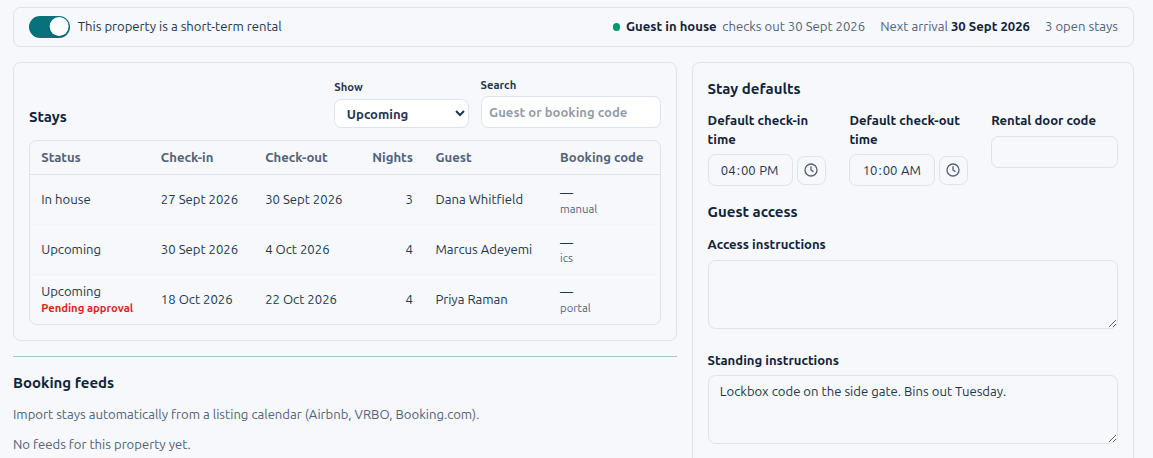
These are the property’s normal times. Any individual Booking can override them.
Owner occupancy does not change. When the owner comes to stay, record it as In Residence exactly as you do today. Bookings are only for guests.
2. Building the Turnover Plan
Section titled “2. Building the Turnover Plan”Still on the Rentals tab, find the Turnover plan panel and tell Home Watch IT what normally happens around every stay. Click + Step to add one:
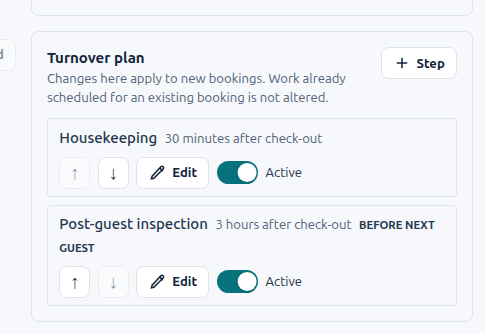
Each step has three parts:
- What the step is, and whether it creates a Task or a Report (a Report uses one of your templates).
- When it happens, measured from check-in or checkout. Checkout + 30 min means half an hour after the guests leave.
- Who does it, if you want a staff member or vendor assigned automatically.
Add as many steps as your service includes: pool or spa check, grocery setup, HVAC preparation, linen delivery. Most properties only need two or three, and setting those up takes about a minute.
A change to the plan applies to Bookings you add from then on. Work already created for existing Bookings stays as it is.
3. Adding a Booking
Section titled “3. Adding a Booking”When a reservation comes in, add a Booking on the property. Enter the guest name, the arrival and departure, and anything the team should know, such as a late arrival or a pet.
Before you save, the Turnover preview at the bottom of the form shows you exactly what it is about to create, who it will be assigned to, and when:
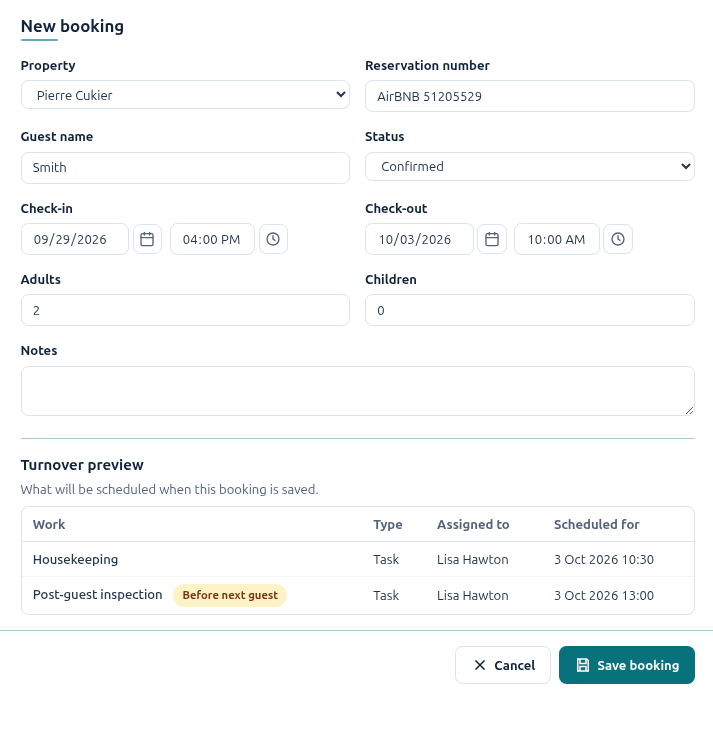
You can adjust this for just this stay: move a time, skip a step, or add a one-off step. The property’s plan is not affected.
Save, and you have the Booking plus ordinary Tasks and Reports on the schedule. Nothing about them is special. Assign them, route them, send them to a vendor, and bill them the same way you always have.
4. When the dates change
Section titled “4. When the dates change”Guests extend. Checkout moves from Sep 28 to Sep 30. Open the Booking and change the date.
Turnover work that is still tied to the plan simply moves to the new dates. Nothing for you to do.
Work that somebody had already moved by hand does not silently jump. Instead, the Turnover work for this stay list on the Booking shows every item with its scheduled time, and the message after you save tells you what was created and what was moved. Anything that did not move is right there for you to check:
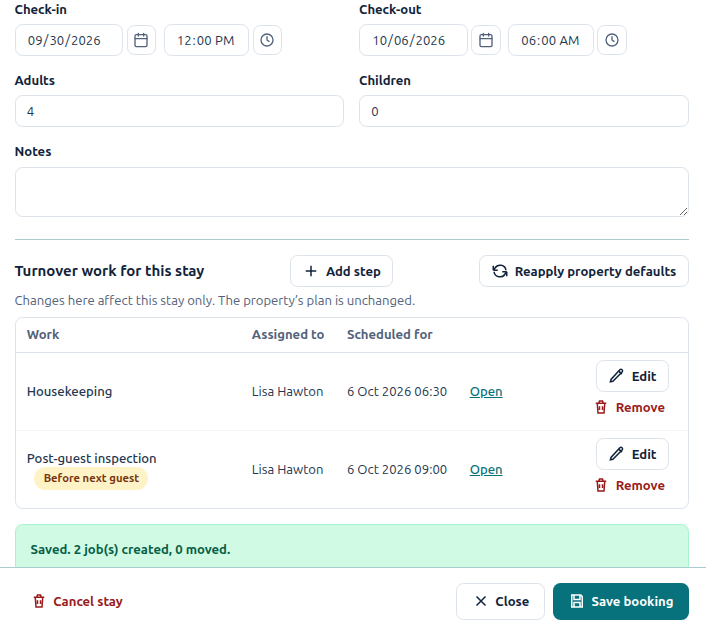
You look at anything that stayed put and decide. And work that is already complete never moves, no matter what happens to the Booking.
If a Booking is cancelled, its open turnover work is removed from the schedule. Completed work stays on the record.
5. Your rental day at a glance
Section titled “5. Your rental day at a glance”The Rentals view sums up the day without duplicating your calendar. It groups things the way a rental operation thinks about them:
Departures  Smith Condo — checkout 10:00    Housekeeping 10:30 — complete    Post-guest report 1:00 — open
Arrivals  Brown Residence — check-in 4:00    Pool check — complete    Pre-arrival report — open
Needs Attention  Pool heater — target before 4:00 PM  Housekeeping unassigned — Jones Villa
Needs Attention is the part worth checking first thing. It picks up things like turnover work with nobody assigned, work that is running late against an arrival, and Actions with a Before next guest target that is coming up. Everything listed is still an ordinary Task, Report, or Action. Click through and you land on the same screens you already use.
Rentals and Actions
Section titled “Rentals and Actions”A problem found at a rental property is recorded the same way as anywhere else: as an Action. The one extra is that the Action can see the next Booking, so you can give it a Before next guest target that moves if the Booking moves. See Workflow Examples in Detail.
Frequently asked questions
Section titled “Frequently asked questions”My property has no Rentals tab. Why? Rentals is switched off for your company. An Admin turns it on in Settings › Company Info with This company manages short-term rentals. See Before you start.
I switched Rentals on, but it is not in the menu. The Rentals menu item appears once at least one property has Rentals turned on. Open a property, go to its Rentals tab, and turn it on.
Do I need Rentals for every property? No. Turn it on only for properties with guest stays. Everything else works exactly as before.
Is an owner staying at their own place a Booking? No. Owner stays are still recorded as In Residence, the same as before. Bookings are for guests. Before next guest only looks at guest Bookings.
Do I have to use the Turnover Plan? No. You can add a Booking with no plan and schedule work by hand. The plan just saves you doing it every time.
If I change the Turnover Plan, does it change Bookings I already added? No. The plan applies to future Bookings. Work already created for an existing Booking stays as it is, and you can adjust that Booking’s turnover by hand if you need to.
Can one Booking have different steps from the plan? Yes. When you add or edit a Booking you can move, skip, or add steps for that stay only.
What happens to the work if a Booking is cancelled? Open turnover work for that Booking is removed from the schedule. Anything already completed stays on the record.
Can two Bookings overlap? Not by accident. If a new Booking overlaps an existing one at the same property, the app stops and asks you to confirm before saving, so a typo in the dates does not create a double turnover. A same-day turnover, out at ten and in at four, is not an overlap.
Does turnover work bill like other work? Yes. It is ordinary Tasks and Reports, so billing works the same way it does for any other visit.
Can my vendor see turnover work? Yes. A step assigned to a vendor appears in the vendor portal like any other Task assigned to them.
Where do I see what is happening today? The Rentals view shows today’s departures, arrivals, and anything needing attention. The calendar and routes still show all of the same work.