
Routes and the Route Calendar
A route is a name for a group of properties you visit together, like “North Loop” or “Lakeside”. The Route calendar shows your week with one card per route per day. Drag a card to another day to move those visits.
Step A: Give each property a route
Section titled “Step A: Give each property a route”- Go to Properties and open a property.
- On the Overview tab, find the Route box.
- Start typing. Click a route from the list, or click Create to add a new one.
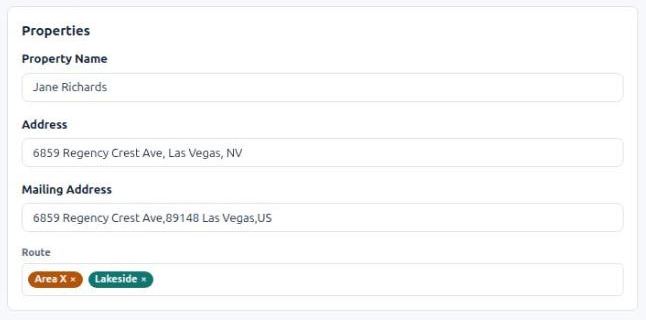
Most properties have one route. A property can have two if it fits both. To take a route off, click the x on it.
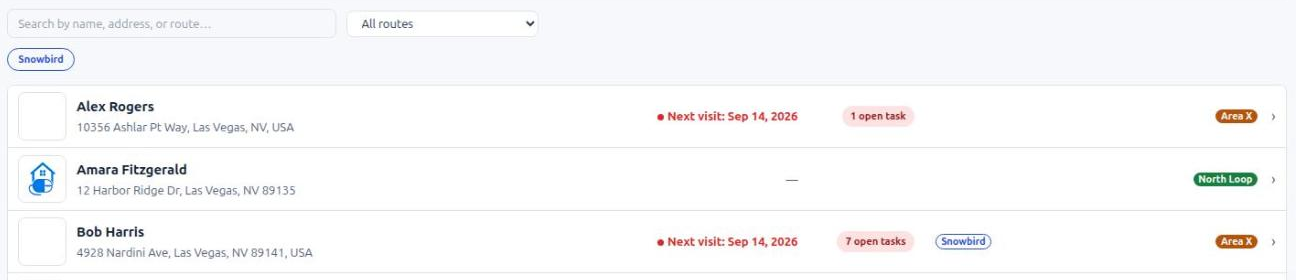
On the Properties list, each property shows its route. Use the All routes box to show only one route.
Step B: Open the Route calendar
Section titled “Step B: Open the Route calendar”- Go to Reports/Tasks and click the Routing tab.
- Click Route calendar.
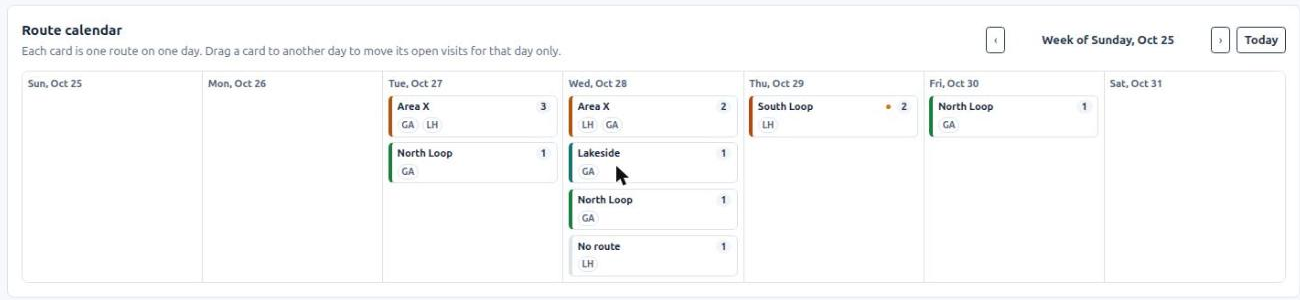
Each card shows:
- the route name and its color,
- how many open visits it has that day,
- the initials of who is doing them.
Visits for properties with no route are on a No route card.
Use the arrows to see another week. Today brings you back to this week.
Step C: See the visits on a card
Section titled “Step C: See the visits on a card”Click a card to open it. You see each property, whether it is a report or a task, how often it repeats, and who is doing it. Click a property in the list to open that visit.
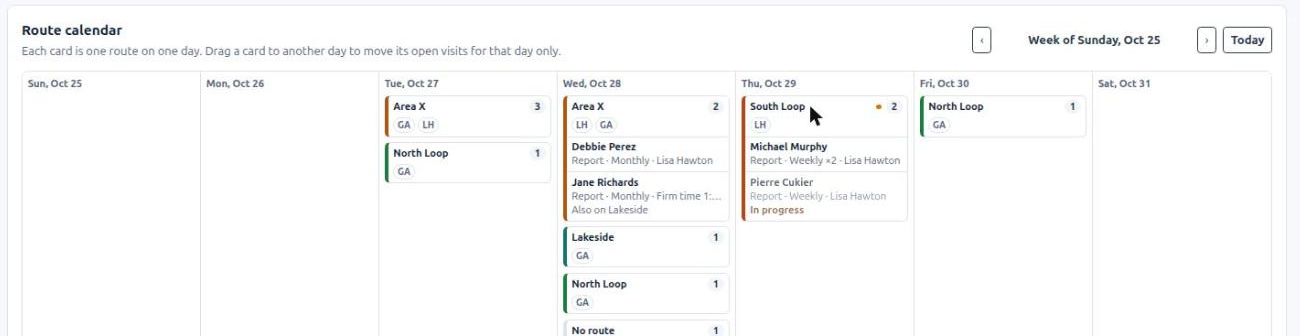
On a computer, you can also rest the mouse on a card to see its list.
Step D: Move a route to another day
Section titled “Step D: Move a route to another day”- Press on a card and drag it to another day.
- Check the list of visits in the box that opens.
- Click Move.
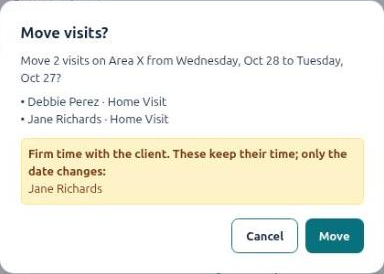
Only that one day moves. The schedule does not change, so next week’s visits stay where they were. Each visit keeps the same person and the same time of day.
To move just one visit: open the card, then drag that one property to another day.
Good to know
Section titled “Good to know”- You can only move to today or a later day. You can move overdue visits forward, but not back into the past.
- Started visits stay put. A visit someone has already started cannot be moved.
- Firm times: if a visit has a firm time with the client, the Move box warns you. It keeps its time; only the date changes.
- MonitorQA and SafetyCulture: visits managed in those apps cannot be moved here. The card shows an orange dot when some of its visits cannot move.
- Saved routes: after a move, the saved driving order for that day shows Out of date — recalculate on the Day route tab. Click Calculate Route when you are done moving things. See Route Planning.
Managing your routes (Admin)
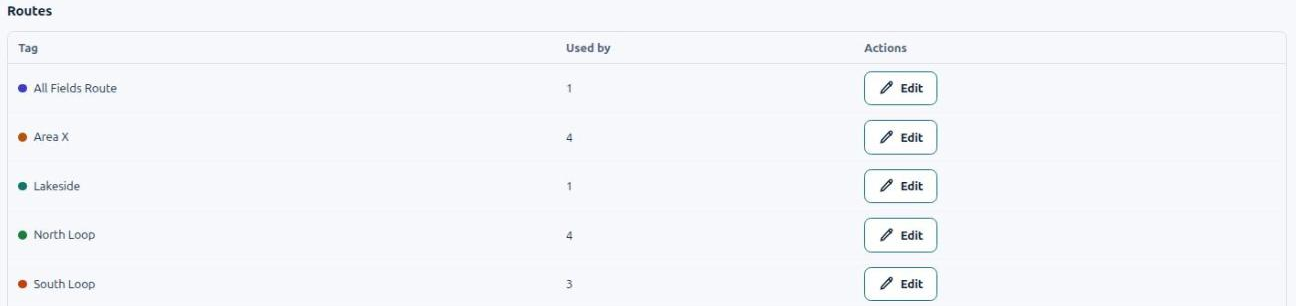
Section titled “Managing your routes (Admin)”Go to Lists, click the Tags tab, and scroll to Routes. Click Edit next to a route to rename it, change its color, merge it into another route, or delete it. See Using Tags.
Who can move visits? Admin and Full Access users. View Only users can look at the calendar but not drag.
I dragged a card and nothing happened. You probably dropped it on a day before today. Visits cannot go back into the past. Drop it on today or a later day.
Does moving a visit tell my client? No. Moving a visit does not send the client anything.
Does the technician’s phone update? Yes. The visit shows on the new day in the mobile app once the phone syncs.
Why is a property on two cards? It has two routes. The card says “Also on …”. Moving it from either card moves the same visit.
Where did the old Route text go? Your existing routes were turned into this new list. A few routes that held something else, like driving directions or a door code, were moved to the right place on the property instead.