
Adding a New Report Template - MonitorQA
You can get to your list of report templates on the Lists screen. Click Lists and the first tab shows all of your templates.
You can create a brand new template by clicking the + on the Reports List page —
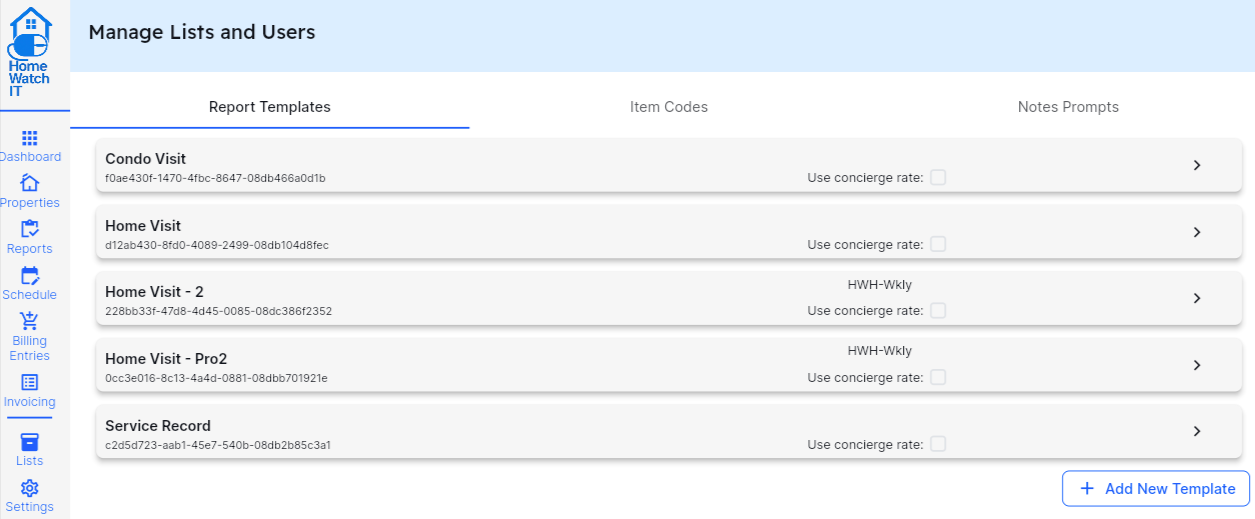
this will take you to the main template screen in your reporting system where you can create a new template.
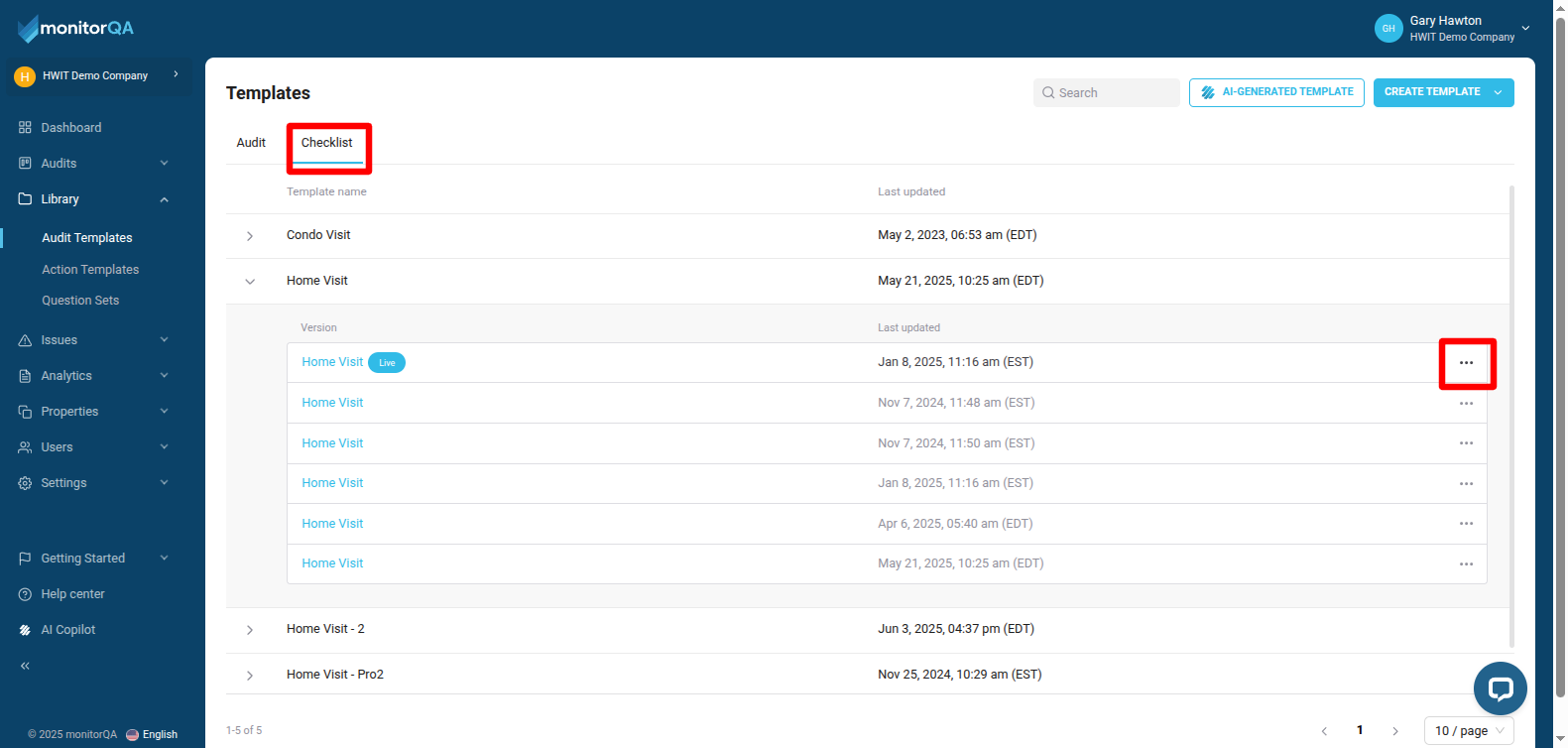
Your checklists will all be on the “Checklist Tab” (highlighted in red above). You can open any of the checklists and see all of the versions that have been created. To edit a particular version click the 3 dots next to that item and open it as “Draft” and then republish it (this is easier to see if you view the Video Tutorial on this page).
If you are adding a new template: to make things easier, it is recommended that you COPY an existing template first, and then edit the copy as your new template. You’ll see the ability to copy a template when you click the 3 dots as illustrated above.
For more information on the mechanics of editing the template itself, please see the articles specific to your reporting application.
Note that if you rename a template in MonitorQA, the new name does not automatically sync to HWIT. If you find that you still have the old name in HWIT and wish to update it you can either: (1) simply edit the name in HWIT or (2) resync the templates. To resync your templates go to Settings / Integrations / Reporting and click the Sync Templates button on that page.