In Residence Processing
In Residence Processing gives you a way to enter in dates that your customers will be at their property, and to schedule visits around those dates. Once you put in an In Residence Entry, all of the automatic scheduling will avoid those dates without you having to think about it.
Note — you can put in OneTime schedules into In Residence date blocks, so long as you enter those after you enter the In Residence Entry.
To enter a new In Residence Entry, navigate to the In Residence List (Schedules / In Residence), and hit the blue +
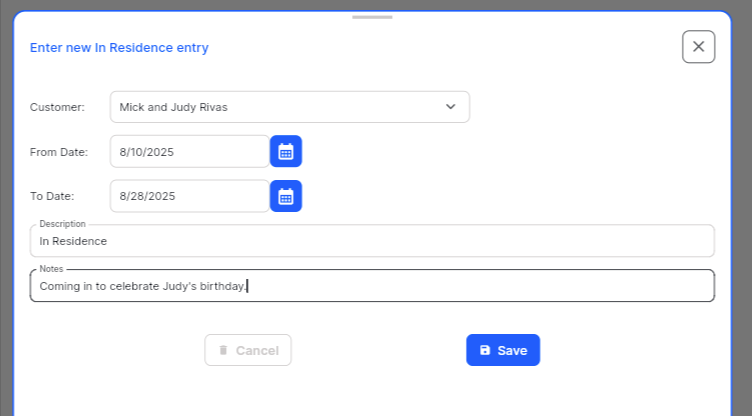
Simply make the entries as necessary and hit Save. As soon as you do, the system will adjust any existing Reports so that they fall outside of the In Residence area, while respecting the day of the week and schedule you have set.
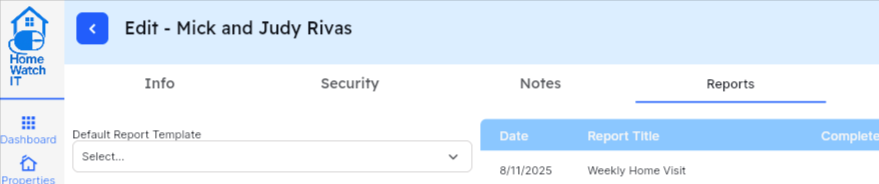
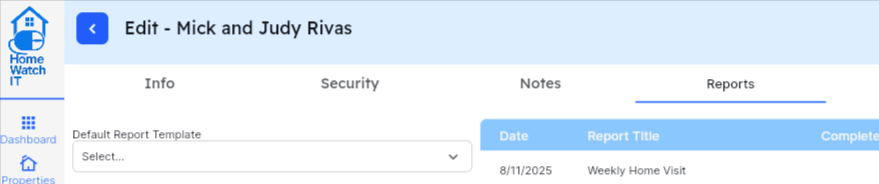
You’ll see that Rivas currently has a report on the 11th of August, However, they are coming in on August 10th and leaving on the 28th as you can see from the entry above. After Saving that entry, their Report has automatically moved to the following Monday.
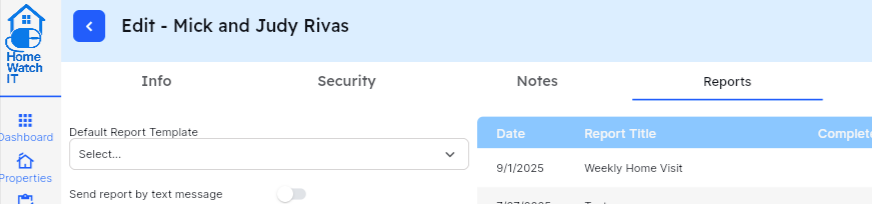
If you change the dates on the In Residence, the system will automatically continue to move reports past the time blocked. If, however, you change the dates and the system is not sure how to move the dates it will prompt you. This can occur if you are moving End Dates inward, or deleting the In Residence completely.
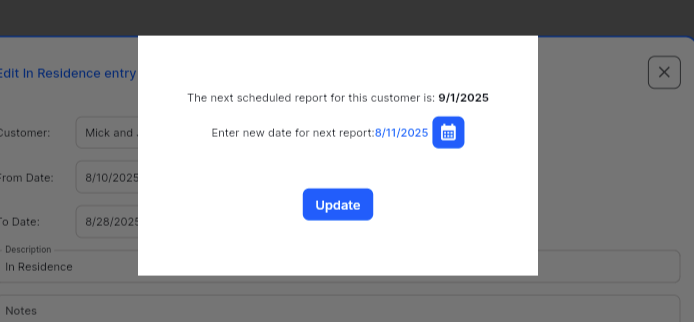
Let’s delete the above item — as their home visit is currently scheduled on September 1, and we are deleting the In Residence completely, the system will ask when you want the next visit to be. Let’s just put it back to August 11 as it originally was.