
The Home Dashboard
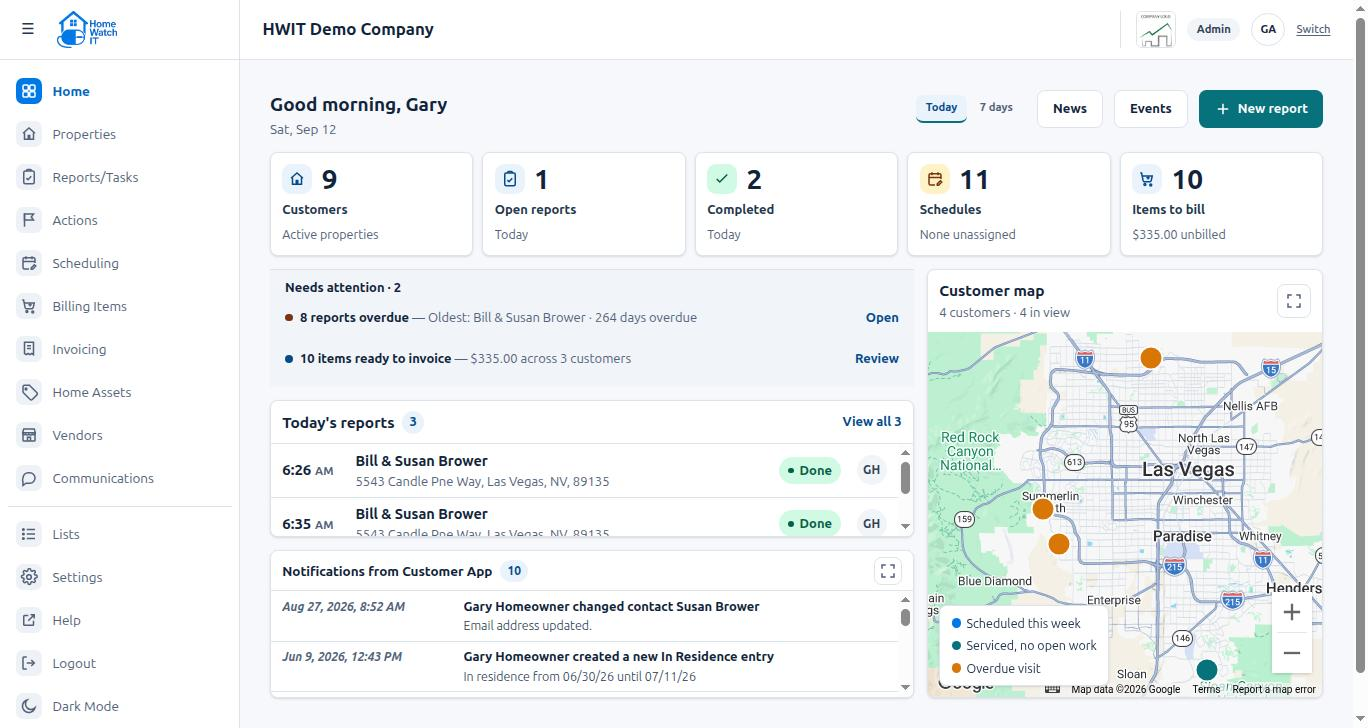
Home is the first screen you see after logging in to the web app, and it is designed to answer “what needs doing today?” without opening anything else.
The top row
Section titled “The top row”A greeting, a Today / 7 days toggle that changes the period the numbers below cover, and three buttons: New report (create a one-off report or task without a schedule), News (HWIT release news — a New badge shows when there is something you haven’t read) and Events (upcoming HWIT webinars, with a Join / Register link).
The numbers
Section titled “The numbers”Five tiles, each of which opens the matching screen when clicked:
- Customers — your active properties.
- Open reports — reports and tasks still to do, today or in the next 7 days.
- Completed — reports finished today or in the last 7 days.
- Schedules — your schedules, with a warning count of any that have no technician assigned.
- Items to bill — billable items waiting to be invoiced, and their total.
Today’s reports
Section titled “Today’s reports”The day’s visits in order, each with its status (Scheduled, In progress, Done), the property and the time. Click one to open it. If the day is empty you can Schedule a visit from here.
Needs attention
Section titled “Needs attention”A short list of things that will bite if ignored, each with a button that takes you straight to it:
- Reports overdue — pending reports whose date has passed, with the oldest named.
- Schedule unassigned — a schedule with no technician (every schedule needs one).
- Items ready to invoice — unbilled items across your customers; Review opens Billing Items.
- Forms outstanding — forms or agreements sent to a contact and not yet completed. Click it to see the list of outstanding forms (this list is only reachable from here). See Forms and Agreements.
Customer map
Section titled “Customer map”Every active property with a valid address. Each pin has its own shape and color: a blue circle is Scheduled this week, a gray square is Serviced, no open work, and an orange triangle is Overdue visit. Click a pin to see the property and jump to it; Expand map gives you the full-screen version. Properties missing from the map usually have an address that didn’t geocode — fix it on the property’s Overview tab.
Notifications from Customer App
Section titled “Notifications from Customer App”Notifications generated by your customers’ use of the Customer App, so you can react without going looking. Click Expand notifications to see the full list. Messages are answered in Communications; In Residence entries customers add are approved on the In Residence list.
First-time setup
Section titled “First-time setup”The first time you log in you are offered a guided walkthrough of the main screens that ends on your Project Plan. You can replay it from Settings → Account → Show the walkthrough again, and the Project Plan itself is always at Settings → Project Plan — see Introduction to the Fundamentals App.