
Adding Credit Card Surcharges to your Invoices
It has become common practice to add a small surcharge (legally it has to be no more than 4%) to an invoice in order to cover credit card processing charges.
Neither QuickBooks nor Zoho have a feature to automatically add surcharges to your invoices and require you to manually add a line after the invoice has been created.
Home Watch IT has automated this function in the Fundamentals Package, so that when generating invoices it will automatically add a line to the invoice with the surcharge amount.
First, you need to set up your company information to allow for credit card surcharges. This invoices adding a Product or Service code in your accounting system called “Credit Card Surcharges”. Once you have added that and it has synced to HWIT you are ready to configure the system.
Go to your Settings Screen, then the Integrations Tab, then click on Accounting System. Turn on “Add credit card surcharges to invoices”. Then add the percentage that you wish to charge and select the Service Code you just set up in the accounting system. Hit Save.
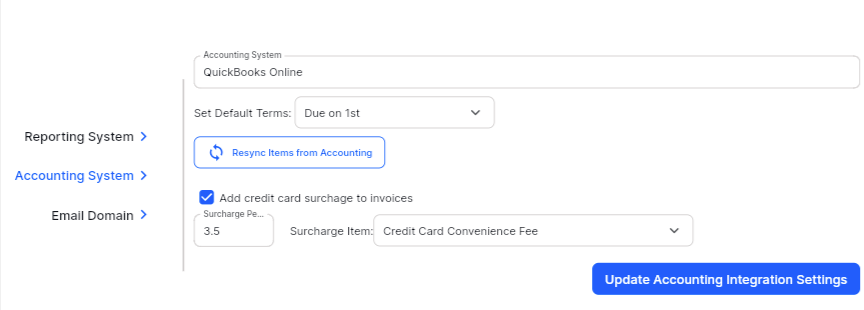
Once you complete that step your system is ready to generate surcharges for selected customers. The system will only generate the surcharge on customers that you flag should be added, so that you can easily charge some customers (who pay with a credit card), and not charge others (VIPs or other payment methods).
On the Property/Customer screen, go to the Billing Tab, and turn ON the Add Surcharge switch.
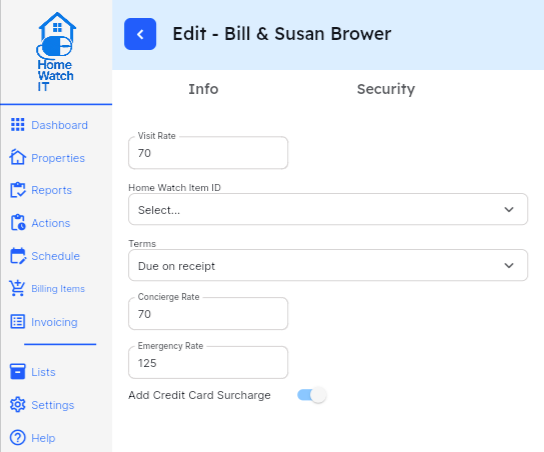
Once that is complete, you only need to run the Generate Invoices step and everything will be taken care of automatically.