
Introduction to Customer Prepayments
Important: This is an early-release feature and is subject to change. You are free to use it now and provide your feedback to Home Watch IT, but there may still be small hidden bugs in the product. Once it is considered stable and “General Release,” this message will be removed.
What prepayments are for
Section titled “What prepayments are for”Some customers like to pay ahead. For example, a customer pays $1,500 for the season. You want each month’s visits to come out of that money.
With prepayments, Home Watch IT does this for you:
- You create a prepayment for the customer. This makes a prepayment invoice.
- The customer pays that invoice.
- Each time you generate invoices, Home Watch IT takes the visits out of the prepaid money automatically.
- When the money runs out, invoices go back to normal. The customer pays them as usual.
You always see how much is left for each customer.
Before you start
Section titled “Before you start”- Prepayments are off for every company until you turn them on.
- Only an Admin can turn them on or off.
- They work with HWIT Invoicing, QuickBooks Online and Zoho Books.
- Zoho Invoice is not supported. See Managing Customer Prepayments in Zoho.
Turn on prepayments — HWIT Invoicing
Section titled “Turn on prepayments — HWIT Invoicing”A. Go to Settings › Integrations › Accounting Integration.
B. Turn on Use customer prepayments.
C. That’s it. You will see Prepayment item: Prepayment — configured.
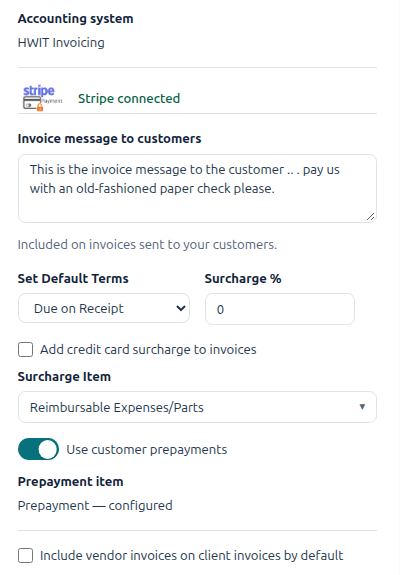
Home Watch IT creates an Item Code called Prepayment for you. You will see it in Lists › Item Codes. Leave it there — prepayment invoices use it.
Turn on prepayments — QuickBooks Online
Section titled “Turn on prepayments — QuickBooks Online”QuickBooks needs one item for prepayments. You create it in QuickBooks first.
A. In QuickBooks, create a Service item. Name it something like Customer Prepayments.
B. Set its account to an Other Current Liability account (for example, “Customer Prepayments”). This is the kind of account QuickBooks uses for money you are holding for a customer. Your bookkeeper will know it. Make sure the item is not taxable.
C. In Home Watch IT, go to Settings › Integrations › Accounting Integration.
D. Click Resync from Accounting so the new item comes over.
E. Turn on Use customer prepayments.
F. In Prepayment item, choose the item you made in step A.
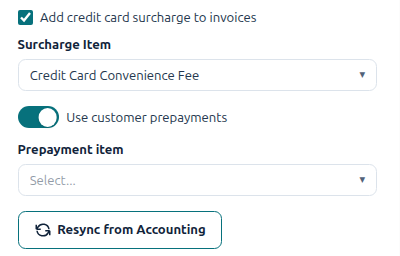
Home Watch IT checks the item with QuickBooks before saving it. If the item is on the wrong kind of account, or is taxable, you will see why. Fix it in QuickBooks, resync, and choose it again.
Turn on prepayments — Zoho Books
Section titled “Turn on prepayments — Zoho Books”Zoho Books keeps prepaid money on a Retainer Invoice. That feature is off in Zoho until you turn it on.
A. In Zoho Books, go to Settings › Preferences › General and turn on Retainer Invoices.
B. In Home Watch IT, go to Settings › Integrations › Accounting Integration.
C. Turn on Use customer prepayments.
If Retainer Invoices is still off in Zoho, Home Watch IT tells you and leaves prepayments off. Turn it on in Zoho and try again.
Choose which services prepayments can pay for
Section titled “Choose which services prepayments can pay for”By default, prepaid money can pay for every Item Code. You can exclude some — for example, reimbursable expenses or parts.
A. Go to Lists › Item Codes.
B. Open the item.
C. Turn off Prepayments can pay for this item.
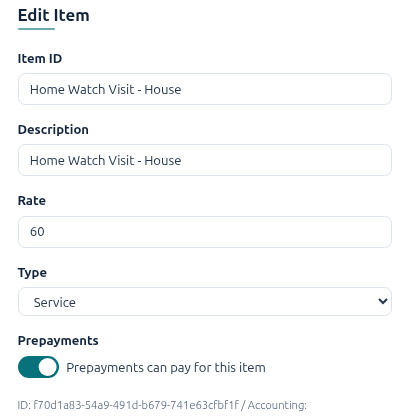
That item is then always billed normally, even when the customer has prepaid money.
This switch only shows once prepayments are turned on.
Turn prepayments off
Section titled “Turn prepayments off”Turn off Use customer prepayments in the same place.
You can only turn it off when no customer has prepaid money left and no prepayment invoice is still unpaid. If one does, Home Watch IT tells you. Use up, refund or write off that money first — see Prepayment Refunds, Write-offs and Corrections.
Turning it off keeps all the history.
Next steps
Section titled “Next steps”- Taking and Using Prepayments — create a prepayment and see how it is used on invoices.
- Prepayment Refunds, Write-offs and Corrections — give money back, write off a balance, fix a mistake, and the FAQs.