
Connecting Claude to HWIT
You can connect Claude to your HWIT account so you can ask it things like “Which visits are due this week?”, “Summarise the last report for the Smith property” or “Which invoices are still unpaid?”.
Claude can only read your information. It cannot change, add or delete anything in HWIT.
Step A: Add HWIT as a connector in Claude
Section titled “Step A: Add HWIT as a connector in Claude”- In Claude (on the web or in the desktop app), open Customize, then the Connectors tab.
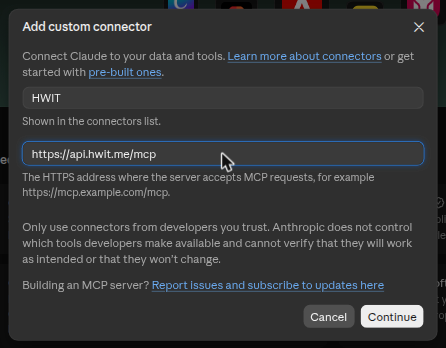
- Click Add (top right), then Add custom connector.
- For the name, type
HWIT. For the MCP server URL, enter:https://api.hwit.me/mcp - Click Continue, then click Connect next to the new HWIT connector.
Step B: Sign in and choose what Claude may read
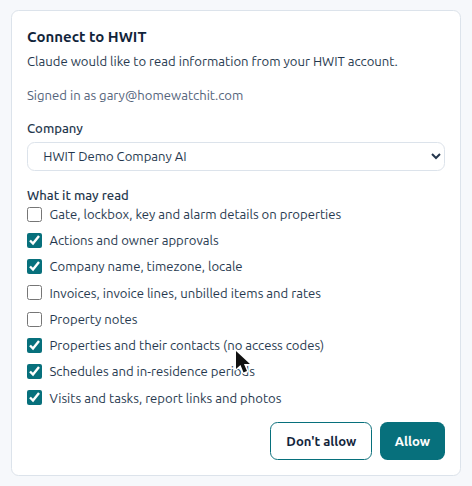
Section titled “Step B: Sign in and choose what Claude may read”- A HWIT sign-in page opens. Sign in with your usual HWIT email and password.
- If you belong to more than one company, choose the company Claude should see.
- Tick what Claude may read. Visits, properties, schedules and actions are ticked for you. Invoices, property notes and access codes are off unless you tick them.
- Click Allow. (Click Don’t allow if you change your mind; nothing is connected.)
You are sent back to Claude, and the HWIT connector shows as connected.
Step C: Ask Claude
Section titled “Step C: Ask Claude”Start a new chat and ask in plain words. A few examples:
- What is scheduled for tomorrow?
- Show me the open actions for the Harbor View property.
- Which properties have owners in residence this month?
- Summarise the last three visits to 12 Ocean Drive.
Claude only sees the company you chose and only the items you ticked.
Disconnecting
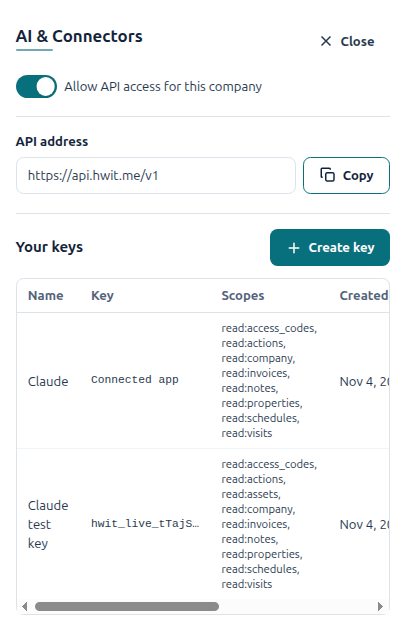
Section titled “Disconnecting”- In HWIT: go to Settings → Integrations, click AI & Connectors, and click Revoke on the Claude row (it shows Connected app in the Key column). Claude stops working at once.
- In Claude: open Customize → Connectors and remove the HWIT connector.
To change what Claude may read, disconnect and connect again, ticking different items.
Things to know
Section titled “Things to know”- Each person connects with their own HWIT sign-in. Claude sees exactly what that person could see in HWIT, never more.
- Only an Admin or Full Access user can allow invoices, property notes or access codes. View Only and Auditor Only users can connect, but those items are not offered.
- An Admin can see every connection in the company under Settings → Integrations → AI & Connectors and revoke any of them.
- An Admin can turn off Allow API access for this company on the same screen. Every connection and key in the company stops working until it is turned on again.