
Getting Website Inquiries into Leads
Your website’s contact form already emails you when someone fills it in. Point that email at your Leads address instead, and each inquiry appears in Leads by itself.
Step A: Turn on your Leads address (Admin)
Section titled “Step A: Turn on your Leads address (Admin)”-
Go to Settings → Integrations and click Leads.
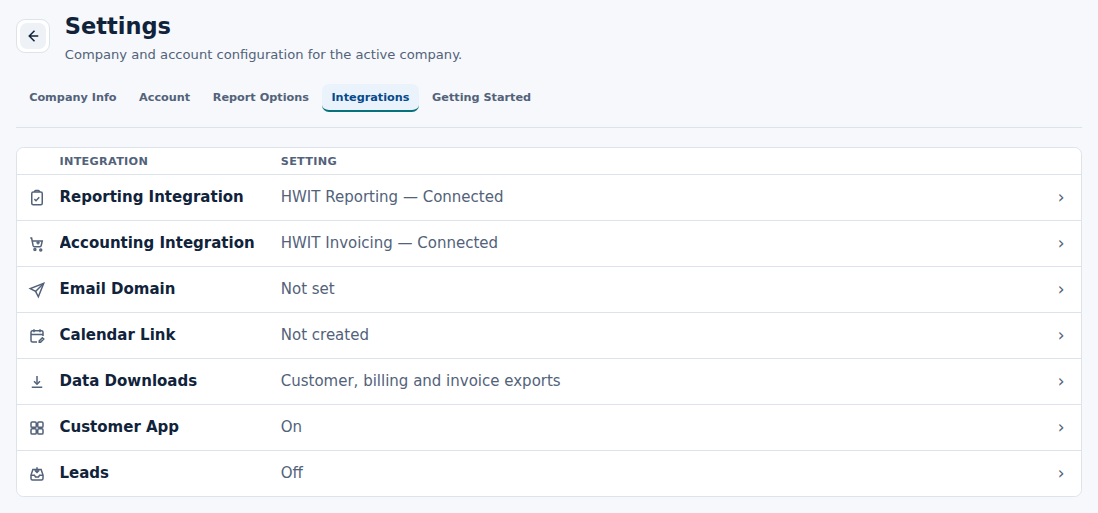
-
Turn on Receive leads by email.
-
Click Copy next to the Address. It looks like
f2d87c6546a84bb1@leads.homewatchit.com.
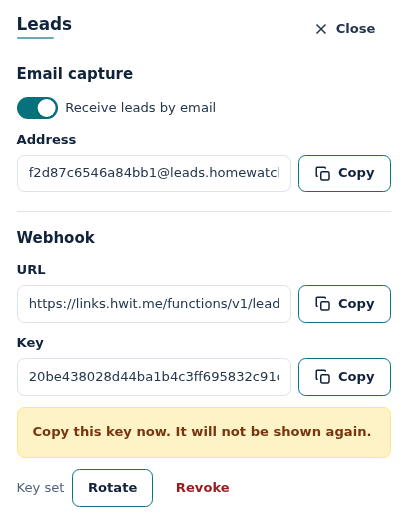
This address is only for your company. Anything emailed to it becomes a lead. If it can’t, you are told (see Forwarding emails below).
Step B: Make sure your form asks for a name
Section titled “Step B: Make sure your form asks for a name”Your form should have a Name field (or First name and Last name), plus an email or phone field. Then each inquiry becomes a lead straight away.
An address field is helpful but not needed.
Step C: Send your form’s emails to the Leads address
Section titled “Step C: Send your form’s emails to the Leads address”Squarespace
Section titled “Squarespace”- Open the page with your contact form and click Edit.
- Click the form, then the pencil icon.
- Click the Content tab, then Email Notification.
- Remove your own address and paste your Leads address.
- Click Save, then save the page.
Squarespace allows only one email address per form. From now on, you are told about new inquiries by the New lead email from Home Watch IT instead. It goes to your company’s primary user.
- In Wix, add your Leads address as a new Contact. Wix only sends form emails to contacts.
- In your Wix dashboard, go to Automations.
- Find your form’s notification, click More Actions → Edit.
- Click Send an email, then Show additional settings.
- Under Recipients, click Edit and add the Leads contact. Click Apply, then save.
You can keep your own address on the list too.
Any other form
Section titled “Any other form”If your form can email its submissions, give it your Leads address.
Step D: Test it
Section titled “Step D: Test it”Fill in your own form with a test name. Within a minute or two it should appear in Leads as New. Delete the test lead afterwards.
Forwarding emails to your Leads address
Section titled “Forwarding emails to your Leads address”You can forward any inquiry email to your Leads address.
- Form emails (from Squarespace, Wix and so on) are read automatically. The lead appears as New.
- Any other email, for example a personal “Dear ABC Home Watch…” message: Home Watch IT reads it with AI and creates the lead, marked Needs review. Open the lead, check the details, and click Save. Saving clears Needs review.
- If no lead can be created from an email, your company’s primary user gets an email called We couldn’t create a lead from an email, with the original message. Add the lead yourself with Add lead.
Nothing is lost without you being told.
- A lead that arrives without an email or phone is also marked Needs review.
- If a stranger finds your Leads address and sends junk, turn Receive leads by email off and on again. You get a new address, and the old one stops working. Update your form with the new one.
Frequently Asked Questions
Section titled “Frequently Asked Questions”I set it up but nothing arrives. Check that the Leads address is pasted exactly, and that Receive leads by email is on. Then send a test again. If an email could not be turned into a lead, your primary user gets a We couldn’t create a lead from an email email.
Will I still get an email for each inquiry? Yes. Your company’s primary user gets a New lead email with a button to open it.
My web designer wants to connect the form directly. See Advanced: Connecting a Form by Webhook.