
Communications: Messaging Your Customers
Communications is a chat-style screen for messaging the property owners who use the Customer App (HWIT Access). Owners write to you from their app; you read and reply from the web app, and you can turn a conversation straight into an Action or a Task.
Turning it on
Section titled “Turning it on”Communications is off until you enable it:
- Turn on the Customer App itself — see Set up Customer App access.
- In Settings → Integrations, on the Customer App row click Manage Customer App, then under In App Communications turn on Use In App Communications.
A Communications entry then appears in the left-hand navigation for everyone in your company. A New badge on it tells you there are unread messages.
Reading and replying
Section titled “Reading and replying”The screen has the list of Conversations on the left and the selected conversation on the right. Each conversation belongs to one property and has a subject. Use the search box to find one, or the Unread filter to see only conversations with new messages.
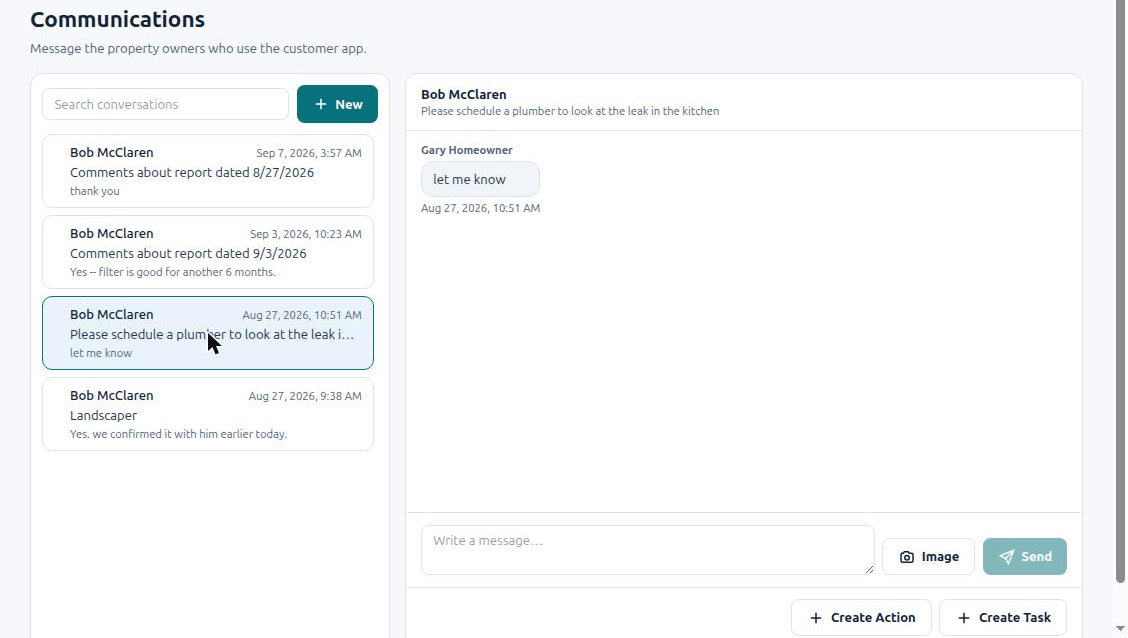
Type in the Write a message… box and click Send. Click Image to send a picture with an optional caption. The owner sees your reply in their app.
Admin and Full Access users can reply. View Only users can read conversations but not send.
Starting a conversation
Section titled “Starting a conversation”Click New, choose the Property (only properties that have Customer App users are offered), give the conversation a Subject, write the first Message and click Start conversation.
Creating an Action or Task from a conversation
Section titled “Creating an Action or Task from a conversation”When a customer’s message is really a request for work — “the pool light is out”, “can you let the plumber in on Friday?” — you don’t have to retype it. At the bottom of the conversation, click Create Action or Create Task.
HWIT reads the conversation and uses AI to write a short summary, then opens the Add Action or Add Task form already filled in: the property is selected, the title and description (or the task’s Report Notes) carry the summary, and you just check it, set the date or assignee, and save. If the summary can’t be produced, the form still opens, just blank.
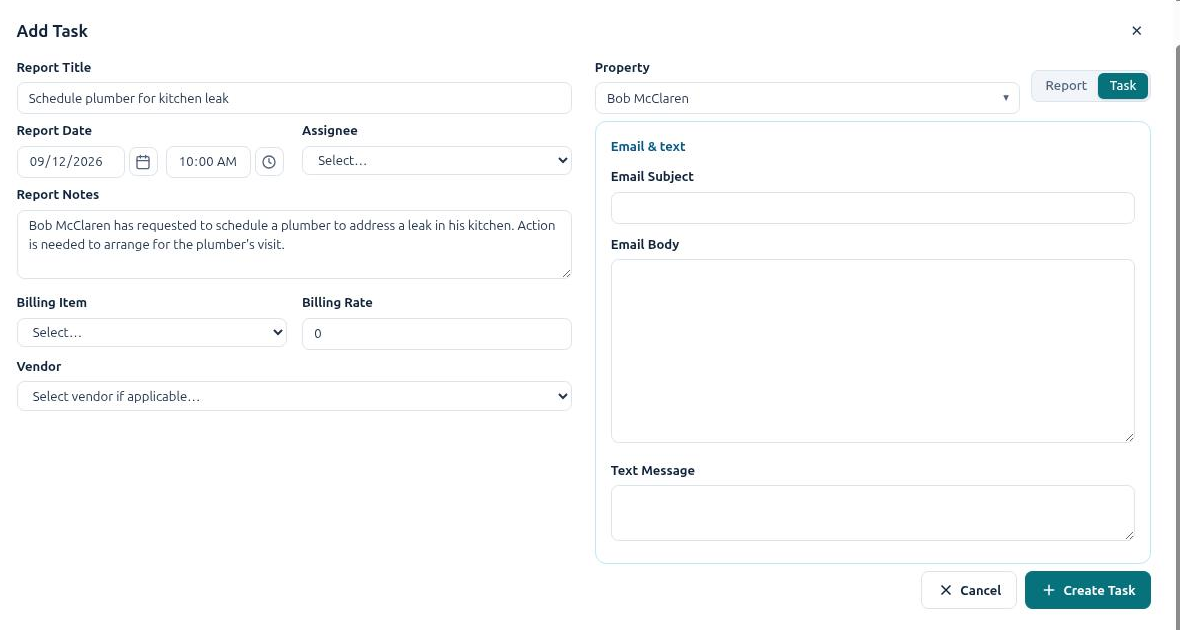
See Intro to Actions and Tasks vs Reports for what happens next.
Notifications on the dashboard
Section titled “Notifications on the dashboard”New messages and other activity from the Customer App also appear in the Notifications from Customer App card on the Home dashboard — see The Home Dashboard.