
Departure Checklist
Your team finishes a visit. The report is done. Then, an hour later, the owner calls: the garage door was left open.
The Departure Checklist is for exactly that moment. It is a short list of things to check before anyone leaves a property. The mobile app shows it when a technician taps Complete Report, and the report cannot be completed until every item is ticked. It is the same list for everyone on your team, including you.
The Departure Checklist works only with HWIT Reporting. It does not appear for companies using MonitorQA or SafetyCulture.
The checklist is for your eyes only. It is kept on the visit record so you can see who ticked it and when. It is never part of the report the owner receives.
What it looks like on the phone
Section titled “What it looks like on the phone”When the checklist is on, tapping Complete Report opens the list before anything is saved:
- One line per item, each with a box to tick.
- Complete Report stays greyed out until every box is ticked.
- Back returns to the report. Nothing is recorded, and the report stays open.
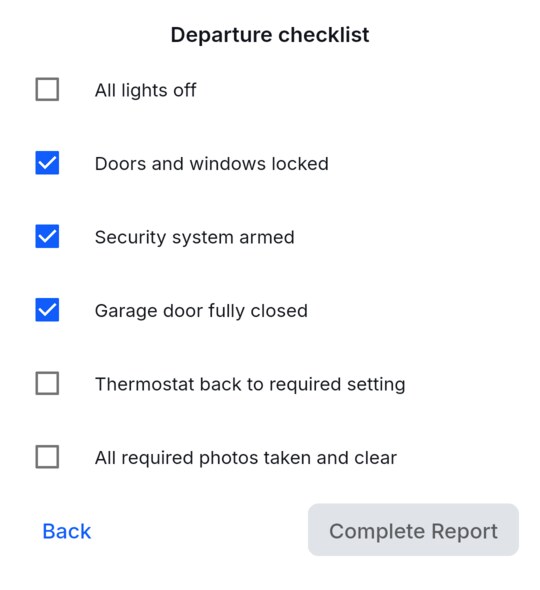
The checklist appears for Reports and for Tasks, including a Task completed with the Complete button on its edit screen. It works with no signal, like the rest of the report, and uploads with the report when the phone is back online.
Setting it up
Section titled “Setting it up”You need to be an Admin or Full Access user.
- Open Settings and click the Report Options tab.
- Scroll to Departure checklist and turn on the switch.
- Click Add item and type the first check, for example All lights off.
- Add the rest of your items the same way. Use the arrows to change the order and the cross to remove an item.
Your changes save by themselves a moment after you stop typing. There is no Save button.
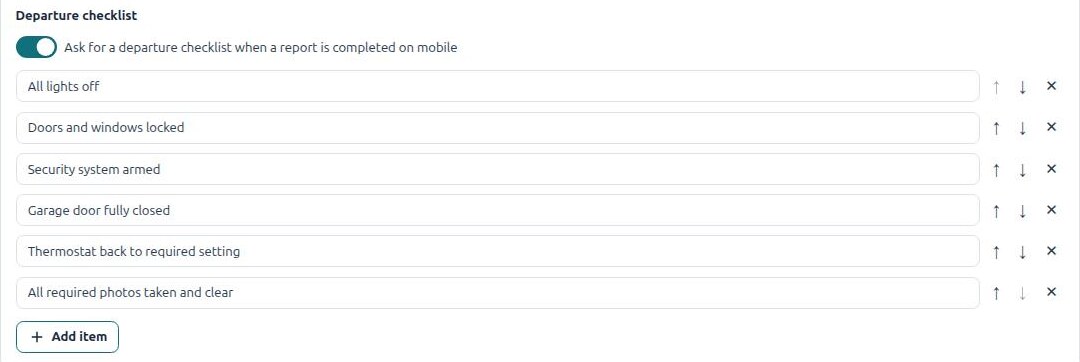
A good list is short. Six to ten items that cover the things that cause call-backs is plenty. For example:
- All lights off
- Doors and windows locked
- Security system armed
- Garage door fully closed
- Thermostat back to required setting
- All required photos taken and clear
Phones pick up the new list the next time they sync, usually within a minute.
Seeing who ticked it
Section titled “Seeing who ticked it”Open the report in the web app from Reports/Tasks. Below the report details there is a Departure checklist heading. Click it to see who completed the checklist, when, and the time each item was ticked.
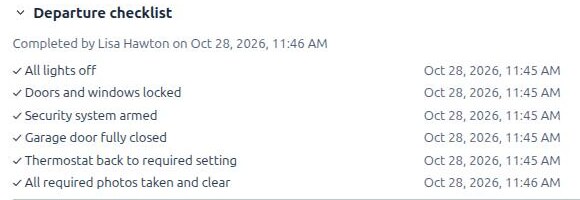
The list on the report is a copy taken at the time of the visit. Changing your company list later does not change what was recorded on earlier reports.
Frequently asked questions
Section titled “Frequently asked questions”Does the owner ever see it? No. It is not in the report, the report email or the text message. Owners using the Customer App do not see it either.
Can a technician skip it? No. Complete Report stays greyed out until every item is ticked. The only other choice is Back, which leaves the report open and records nothing.
What if a report is completed from the web app? The checklist is only asked for on the phone. Completing a report from the office does not ask for it, because the checks are about leaving the property.
Can I have a different list for different templates or properties? Not at the moment. There is one list per company. Keep the items general enough to apply to every visit.
Does it work for Tasks as well as Reports? Yes. The same list appears when a Task is completed on the phone.
What happens if I turn the switch off? The phone stops asking. Your items are kept, so you can turn it back on later without retyping them. Checklists already recorded on past reports stay there.
Why is the checklist missing from an older report? The report was completed before the checklist was turned on, or it was completed from the web app.