
Tracing Billing Between Reports and Invoices
Fundamentals keeps the link between the work you did and the money you billed for it, in both directions. Nothing new to set up: it is built from the billing items your reports already create.
From a report or task to its invoice
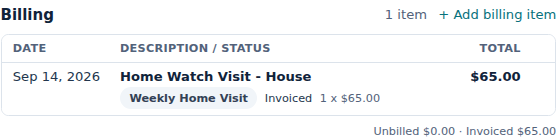
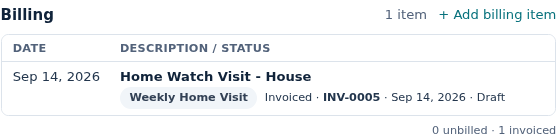
Section titled “From a report or task to its invoice”Open any report or task (Reports/Tasks, click the row, or open it from the schedule or the calendar). Right after the Billing Item and Billing Rate fields is Billing items: every charge that report or task produced. It sits above the Vendor field and the Vendor Bills section. It starts collapsed, with the number of charges and the unbilled and invoiced totals beside the title; click the title to open the list.
The Billing Item and Billing Rate fields are where you set what the visit charges. They are only shown while the report is not complete; the Billing items list is where you see what was actually charged.
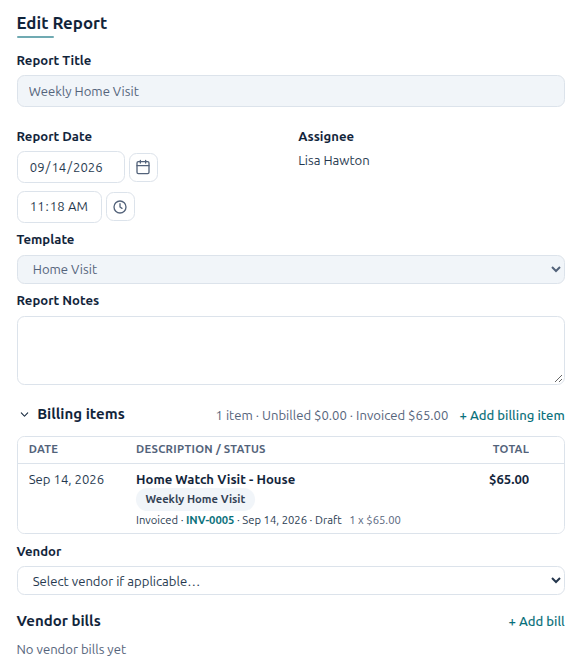
- The charge created when the report was completed carries a badge with the report’s own title (for example Weekly Home Visit), so you can tell it from charges you added by hand.
- Each row shows the date, the description, a status line and the total.
- The totals of what is unbilled and what is invoiced sit beside the title.
The status line reads one of:
| Status | Meaning |
|---|---|
| Unbilled | Waiting for your next invoice run. You can still open and edit it. |
| Invoiced · INV-0047 · Sep 28, 2026 · Sent | On that invoice. Click the invoice number to open it. The last word is the invoice’s own status (Draft, Sent, Paid). |
| Unbilled · previously invoiced | It was on an invoice that was backed out (voided from HWIT); it will be picked up by the next run. |
| Previously invoiced · invoice no longer in HWIT | It was billed, but that invoice was later removed in your accounting system (voided, deleted or re-issued there). Check the accounting system for what replaced it. |
If the report has no charges at all the section simply reads Not billed.
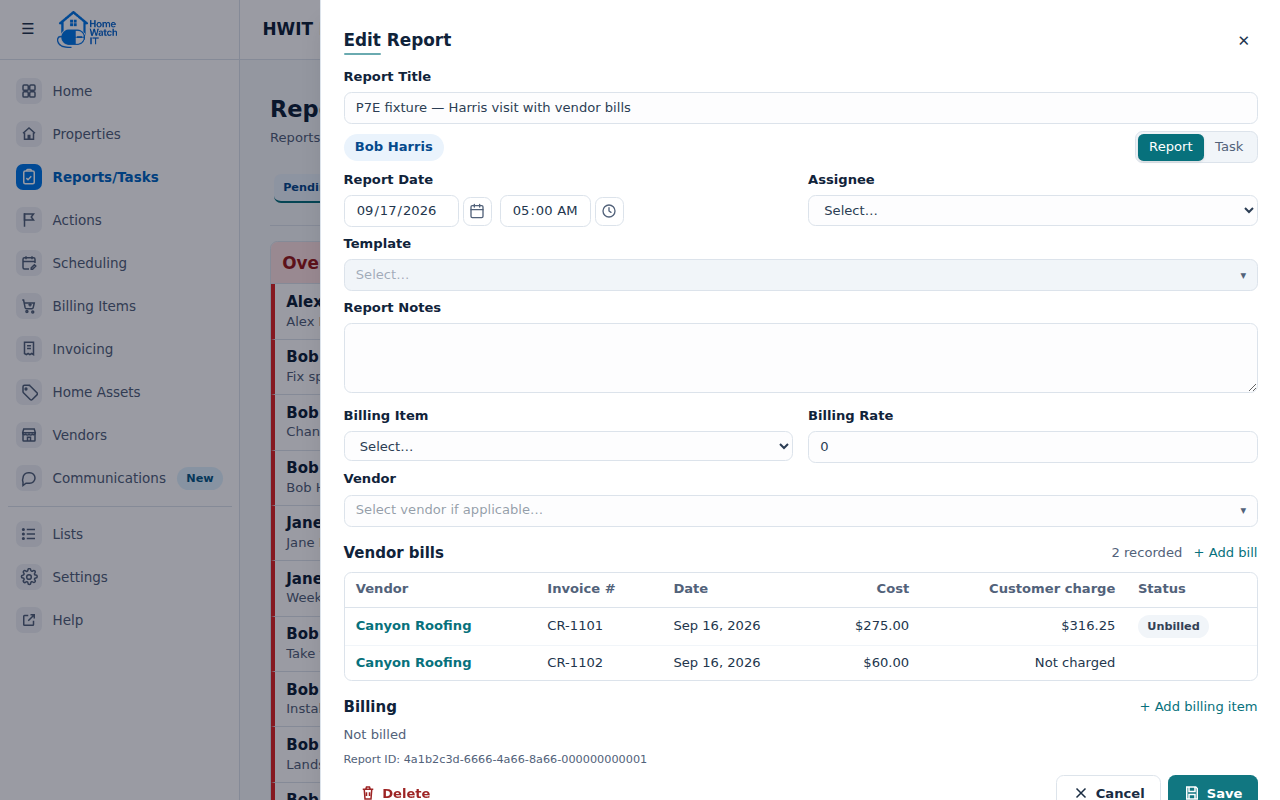
Who did the visit
Section titled “Who did the visit”On a completed report the Assignee is shown as text, the technician’s name as it was when the visit was done. It stays on the report even if that person later leaves your company and is removed from your users. Open reports still use the normal assignee picker.
Adding a charge to a report or task
Section titled “Adding a charge to a report or task”A report or task is not limited to the one charge completion creates. Click + Add billing item on the Billing items title line. You do not need to open the list first — the button is always there, and the list opens for you.
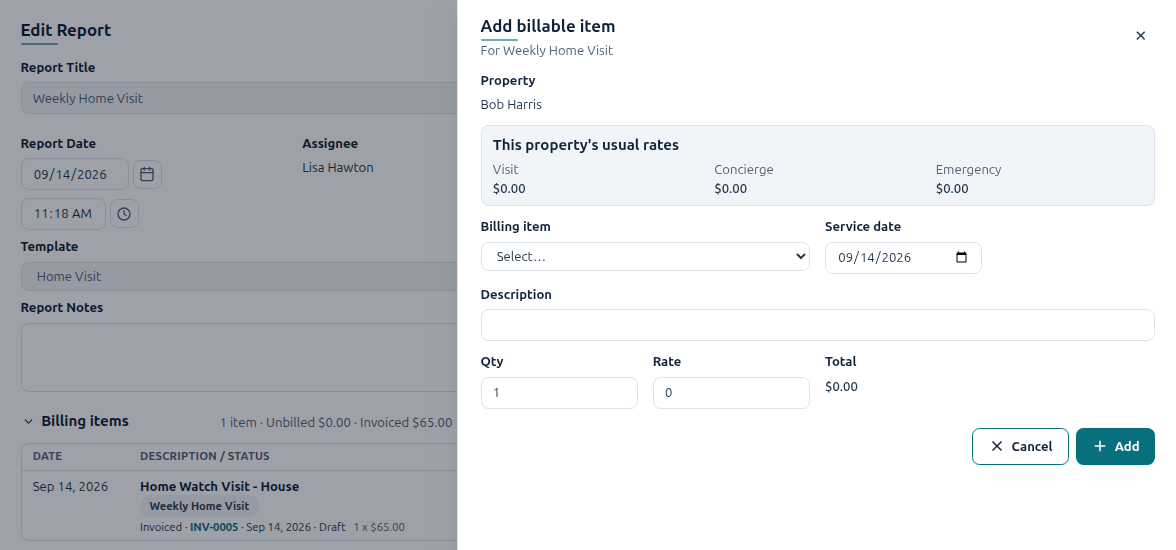
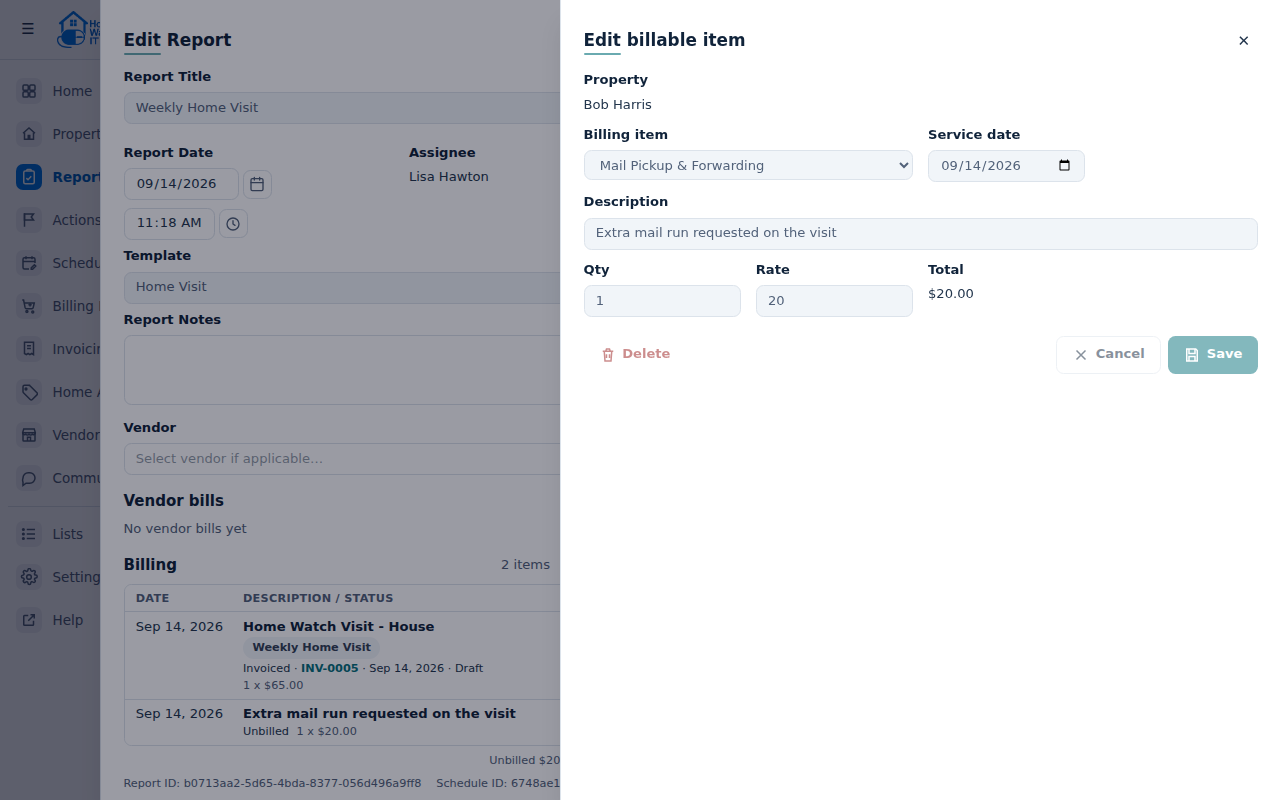
The usual Add billable item form opens with the property already set to the report’s property and the service date set to the report’s date. Choose the billing item, enter a description, quantity and rate, and click Add. The charge belongs to that report from then on: it appears in the report’s Billing items, on the Billing Items page, and on the invoice that eventually includes it. Do this as many times as you need; a report or task can carry any number of charges.
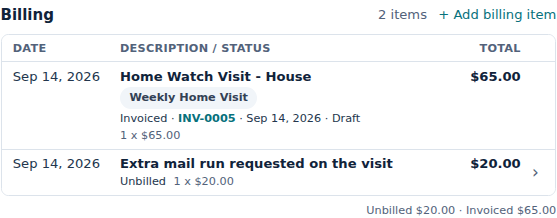
You can do this whether or not the report is complete. Completing the report later still creates its own visit charge as usual; charges you added are extra. This works for Tasks exactly as it does for Reports, so a task such as “Take in bins” can carry the extra supplies you bought for it.
An unbilled charge can be opened from the list and edited or deleted.
Once a charge is on an invoice it is locked: it cannot be edited or deleted, here or on the Billing Items page. Clicking it in the list does nothing; point at its status to see Invoiced items cannot be changed. The same goes for a vendor bill whose customer charge is invoiced — it can no longer be deleted (see Vendor Bills and Receipt Charges). If an invoiced charge is wrong, an Admin can correct the line on the invoice itself (see Editing an Invoice), or void the invoice (see Home Watch IT Invoicing) and correct the charge before the next run.
From an invoice to the work behind it
Section titled “From an invoice to the work behind it”Open an invoice (Invoicing → click the row). Below the totals, Billed work lists the charges that invoice consumed, each with its Source:
- the report or task title — click it to open that report; closing it brings you straight back to the invoice;
- Vendor bill · [vendor] for a pass-through vendor charge (see Vendor Bills and Receipt Charges);
- Manual item for a charge entered on the Billing Items page or the property’s Billing tab with no report behind it.
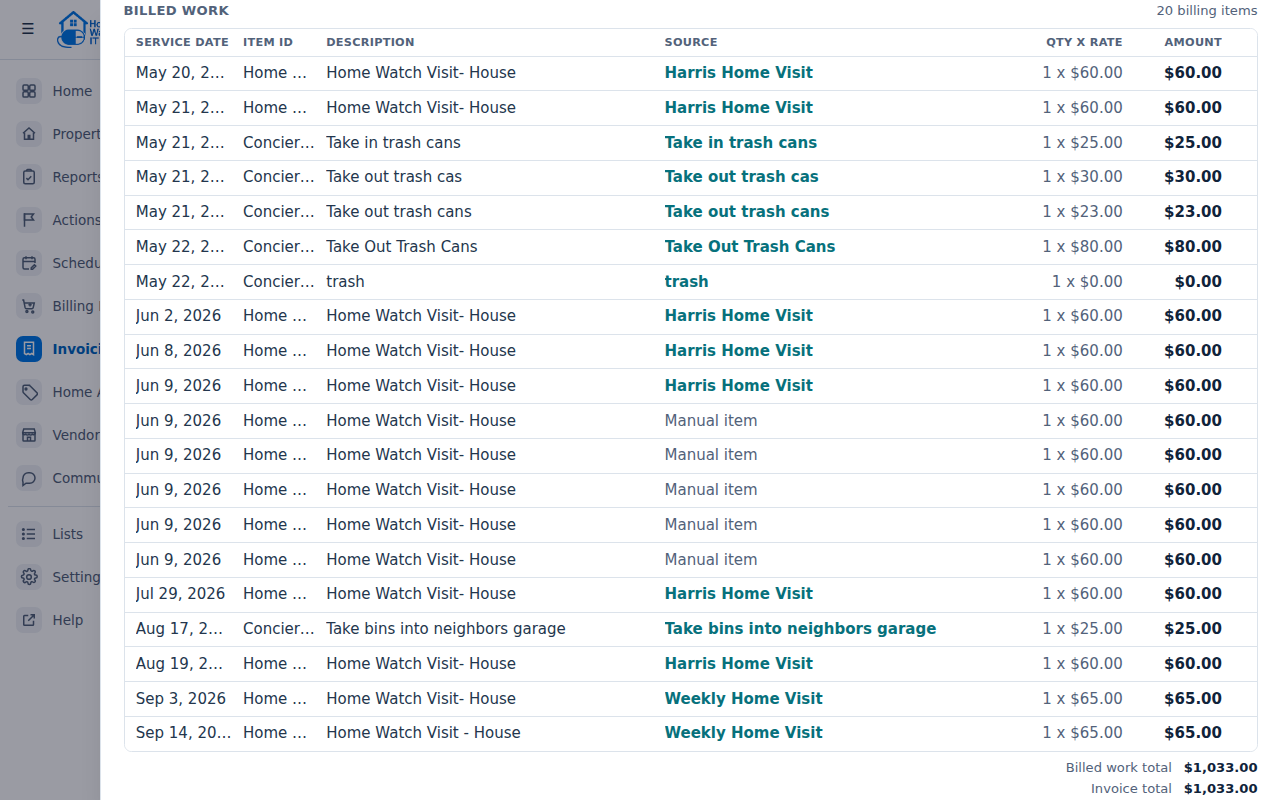
Under the list, Billed work total and Invoice total are shown side by side. When they differ, a Difference line appears with the reason: the invoice also carries lines that are not billing items (a subscription charge, a credit-card surcharge or a subscription credit), or it was changed in your accounting system after it was generated.
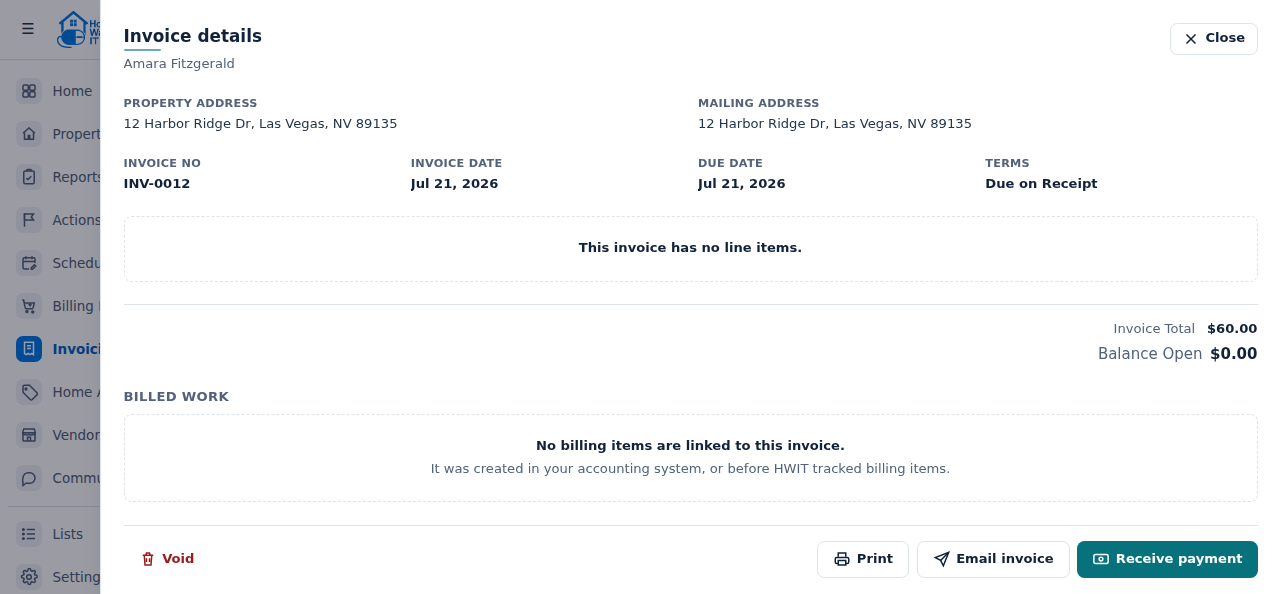
Invoices that were created directly in QuickBooks, Zoho or another accounting system, or before Fundamentals tracked billing items, show No billing items are linked to this invoice.
Your billing history is kept
Section titled “Your billing history is kept”Billing items are never deleted by the system, invoiced or not. A visit you did two years ago still shows its charge and the invoice it went on. Only you can delete a charge, and only while it is unbilled.
Who sees what
Section titled “Who sees what”- Admin and Full Access users see the charges and the invoice numbers.
- View Only users see the charges and whether each is invoiced, but not the invoice number — the same as on the Billing Items page.
- If your account has rates blocked, no rate, total or amount is shown anywhere in these lists.
On the mobile app
Section titled “On the mobile app”The mobile app shows the same charges inside the report or task, and you can add a billing item from there too. Charges already on an invoice are locked on the phone as well. The Billing Items screen still lists all charges.
Frequently asked questions
Section titled “Frequently asked questions”How do I find out which invoice a visit was billed on?
Section titled “How do I find out which invoice a visit was billed on?”Open the report or task and expand Billing items. It shows each charge with Invoiced · INV-… and the invoice date and status. Click the invoice number to open the invoice.
A customer is questioning a line on their invoice. How do I find the visit?
Section titled “A customer is questioning a line on their invoice. How do I find the visit?”Open the invoice from Invoicing. In Billed work, every charge shows its source; click the report or task title to open the report and see exactly what was done that day, including photos.
Can a report or task have more than one charge?
Section titled “Can a report or task have more than one charge?”Yes. Completion creates the visit charge automatically, and you can add as many further charges as you need with + Add billing item on the report. Each one shows in the report’s Billing items and on the invoice’s Billed work.
Why does the report say “Not billed”?
Section titled “Why does the report say “Not billed”?”Either the report is not complete yet, or no billing item was set for it: the report itself, its schedule and the property’s Billing tab all had no billing item, so completion created no charge. Add one with + Add billing item, and set a billing item on the property or the schedule so future visits bill automatically.
Why can’t I change the rate on a charge?
Section titled “Why can’t I change the rate on a charge?”Because it is already on an invoice. Invoiced charges are locked everywhere — they cannot be edited or deleted. An Admin can change the line on the invoice instead (see Editing an Invoice). Or void the invoice from the invoice details, correct the charge, and let the next invoice run pick it up again.
What does “Previously invoiced · invoice no longer in HWIT” mean?
Section titled “What does “Previously invoiced · invoice no longer in HWIT” mean?”The charge went onto an invoice, and that invoice was later voided, deleted or re-issued inside your accounting system, so it no longer exists in HWIT. HWIT does not guess which of those happened. Look the invoice number up in your accounting system to see what replaced it.
Why does the invoice show a Difference?
Section titled “Why does the invoice show a Difference?”Billed work total adds up the charges from your reports and billing items. Invoice total is the invoice as it stands. They differ when the invoice also carries a subscription line, a credit-card surcharge or a subscription credit, or when the invoice was edited in your accounting system after it was generated. A difference is information, not an error.
Why does an older invoice say no billing items are linked?
Section titled “Why does an older invoice say no billing items are linked?”It was created directly in your accounting system, or before Fundamentals tracked billing items. Its lines are still shown above; only the link back to the work is missing.
Do old billing items disappear?
Section titled “Do old billing items disappear?”No. Billing items are kept for as long as the report and the invoice exist. Nothing is deleted by the system.
Why is the technician’s name plain text on a completed report?
Section titled “Why is the technician’s name plain text on a completed report?”Once the work is done the person who did it is history. It is shown as it was on the day, and it stays even after that user is removed from your company. Open reports still let you pick an assignee.
Can I add a charge from the mobile app?
Section titled “Can I add a charge from the mobile app?”Yes. Add it from inside the report or task, or from the Billing Items screen.
Where did “Reconciliation of charges” go?
Section titled “Where did “Reconciliation of charges” go?”It is now called Billing items, and it has moved up the report, right after the Billing Item and Billing Rate fields. It shows the same charges as before, and + Add billing item is always visible on its title line.