
Taking and Using Prepayments
First, prepayments must be turned on. See Introduction to Customer Prepayments.
Where to find prepayments
Section titled “Where to find prepayments”Go to Invoicing › Prepayments.
You see every customer who has a prepayment, with how much is left.
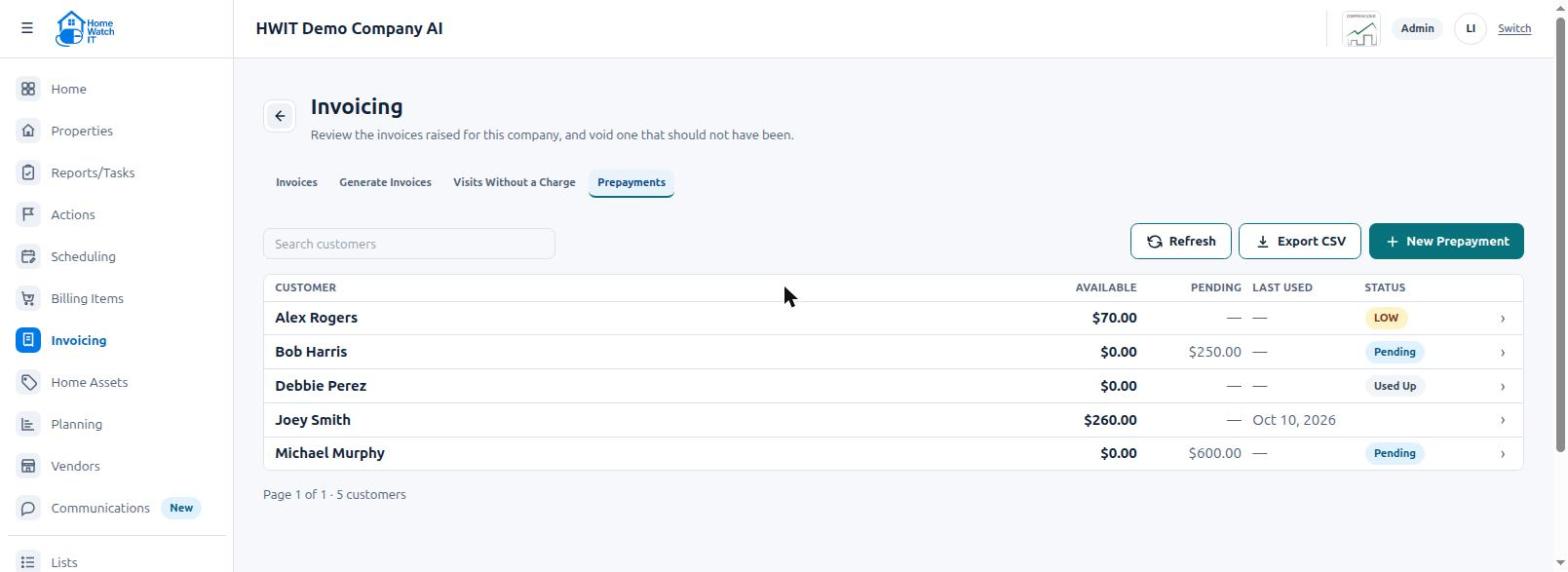
| Column | What it means |
|---|---|
| Available | Prepaid money ready to use on the next invoices. |
| Pending | Prepayment invoices the customer has not paid yet. |
| Last used | When prepaid money was last taken off an invoice. |
| Status | A quick label — see below. |
Status labels:
- Pending — a prepayment invoice is waiting to be paid.
- LOW — less than $100 left. A good time to ask for another prepayment.
- Used Up — nothing left. Invoices are billed normally.
- Needs attention — QuickBooks or Zoho Books and Home Watch IT disagree. See the FAQs.
Take a prepayment
Section titled “Take a prepayment”A. Go to Invoicing › Prepayments.
B. Click New Prepayment.
C. Choose the Customer.
D. Enter the Amount (for example, 1500).
E. Change the Description if you like (for example, “25 Home Visits”).
F. Click Create prepayment.
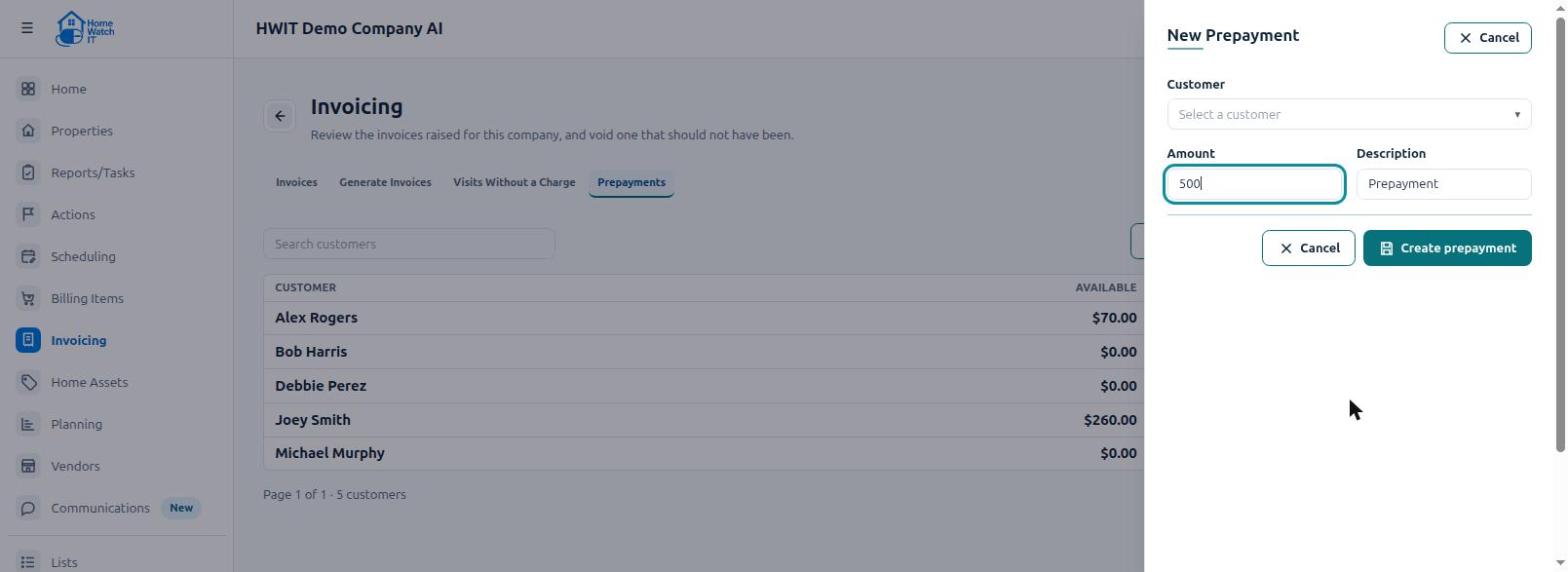
Home Watch IT creates a prepayment invoice with its own invoice number. Send it to the customer like any other invoice. If you use QuickBooks, it goes to QuickBooks like any other invoice. If you use Zoho Books, it goes to Zoho as a Retainer Invoice.
The customer shows as Pending until that invoice is paid.
When the customer pays
Section titled “When the customer pays”Once the prepayment invoice is paid, the money moves from Pending to Available.
Zoho Books: record the customer’s payment in Zoho, on the Retainer Invoice. Home Watch IT sees it at its next sync with Zoho, usually within a few hours, and the money becomes Available then. In Zoho, each visit invoice shows its full amount, with the prepaid money taken off as a payment from the retainer.
Prepaid money is only used after it is paid. An unpaid prepayment invoice is never taken off another invoice.
How prepaid money is used on invoices
Section titled “How prepaid money is used on invoices”You do not have to do anything. When you Generate Invoices, Home Watch IT:
- Adds up the customer’s charges, as always.
- Takes the prepaid money off the charges it can pay for.
- Adds a line: Less: Prepayment applied (INV-…). The number is the prepayment invoice the money came from.
- Adds any card surcharge only on what is still owed.
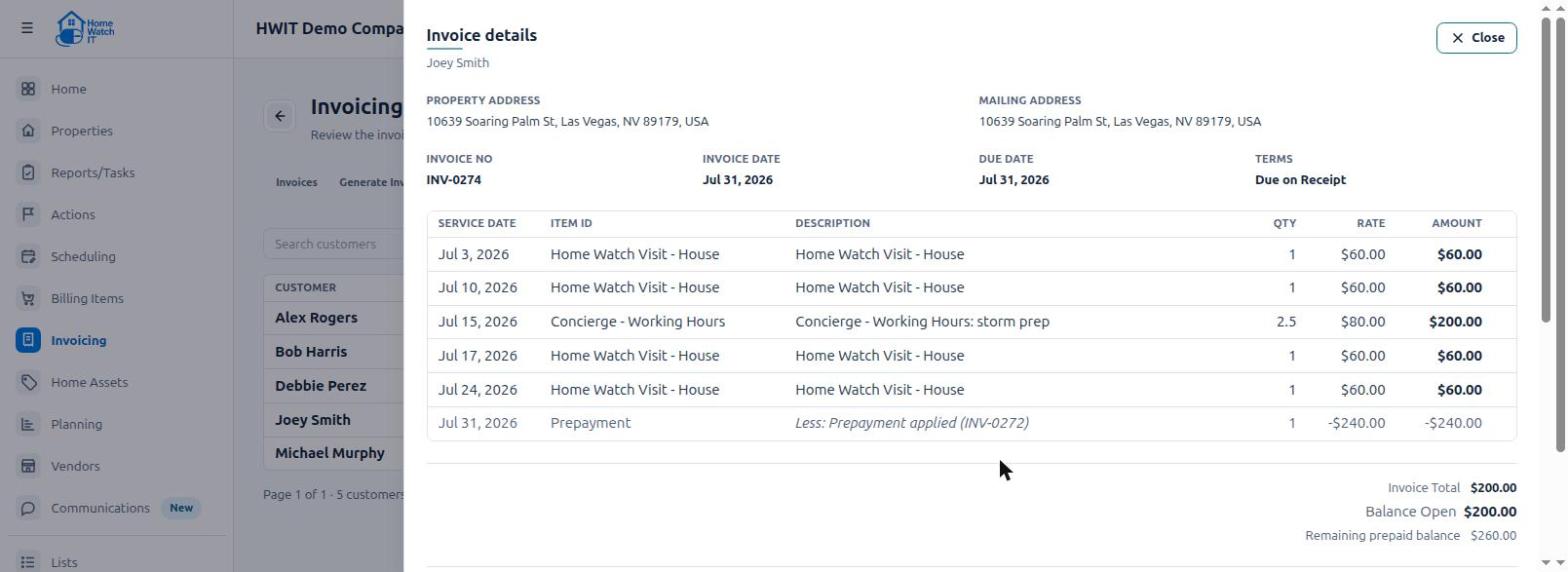
In this example, the four visits ($240) came out of the prepaid money. The concierge charge ($200) was billed normally, because that Item Code is set so prepayments do not pay for it.
What the customer sees:
- The invoice shows the Less: Prepayment applied line.
- It shows the Remaining prepaid balance.
- If the prepayment covers the whole invoice, the invoice total is $0.00. It is marked Paid by prepayment, and there is no payment link.
When there is not enough prepaid money
Section titled “When there is not enough prepaid money”Home Watch IT uses what is left, and the rest is invoiced normally. For example, $50 left on a $60 visit: $50 comes off, and the customer owes $10.
When nothing is left, invoices are billed normally. Nothing renews by itself. To continue, take a new prepayment.
More than one prepayment
Section titled “More than one prepayment”A customer can have several prepayments. They are added together into one Available amount. The oldest paid prepayment is used first.
See a customer’s history
Section titled “See a customer’s history”Click a customer on the Prepayments tab.
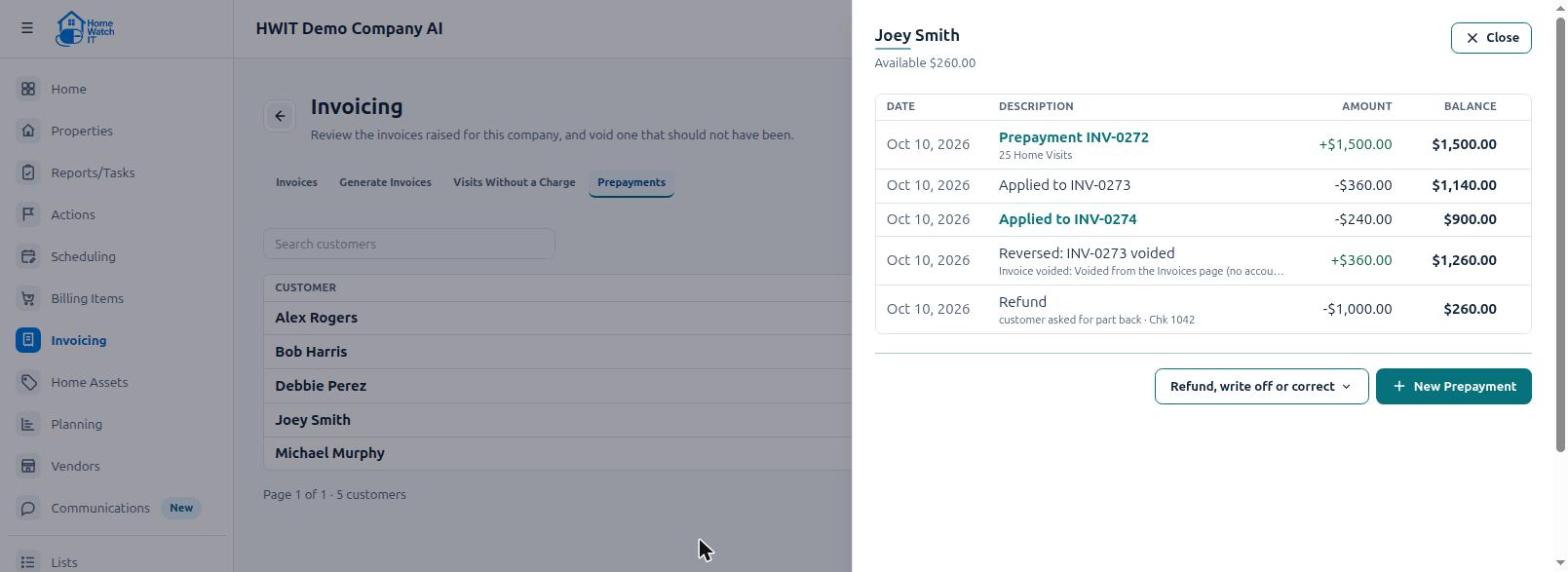
Each line shows what happened and the balance after it:
- Prepayment INV-… — money received.
- Applied to INV-… — money taken off an invoice.
- Reversed: INV-… voided — an invoice was voided, so its prepaid money came back.
- Refund, Write-off, Correction — changes you recorded.
Click an invoice number to open that invoice.
From here you can also click New Prepayment for this customer.
To give money back or fix a balance, click Refund, write off or correct. See Prepayment Refunds, Write-offs and Corrections.
Export the list
Section titled “Export the list”Click Export CSV on the Prepayments tab for a spreadsheet of every customer’s balance.
- Use the LOW label as your reminder to ask for the next prepayment.
- Put the package in the Description (“25 Home Visits”) so it shows in the history.
- Do not change prepayment invoices by hand in QuickBooks or Zoho Books. Make changes in Home Watch IT.
- Need to give money back? Use Record refund, not a void.