
Route Planning: Optimizing Your Daily Schedule
The Route Planning tool calculates the most efficient driving sequence for your daily appointments. The system analyzes all Reports and Tasks assigned to a specific user on a specific date to determine the best order of travel.
How it Works
Section titled “How it Works”- Desktop: Provides a full map visualization of the route and allows for administrative planning.
- Mobile: Focuses on the sequence of stops. Each stop includes a shortcut to launch your phone’s preferred GPS app (Google Maps, Apple Maps, etc.) for turn-by-turn navigation.
Setting Start and End Locations
Section titled “Setting Start and End Locations”To calculate a route, the system needs a beginning and ending point. You can customize these in the Settings/Account screen for each user. The system follows this logic:
- User-Specific: Uses the Start/End addresses saved in the user’s profile.
- Fallback (Start = End): If no End address is found, the system uses the Start address for both.
- Company Default: If no personal addresses are set, the system defaults to the Company Address for both points.
Desktop: Planning the Route
Section titled “Desktop: Planning the Route”- Navigate to Reports/Tasks and select Routing.
- Select Date & User: The system defaults to today, but you can plan for future dates. Select the specific team member from the dropdown.
- Calculate: If a route has already been generated, it will appear automatically. If not, click the blue Calculate button.
- Processing: Please allow a moment for the system to optimize the sequence. Once finished, the map and stop list will appear.
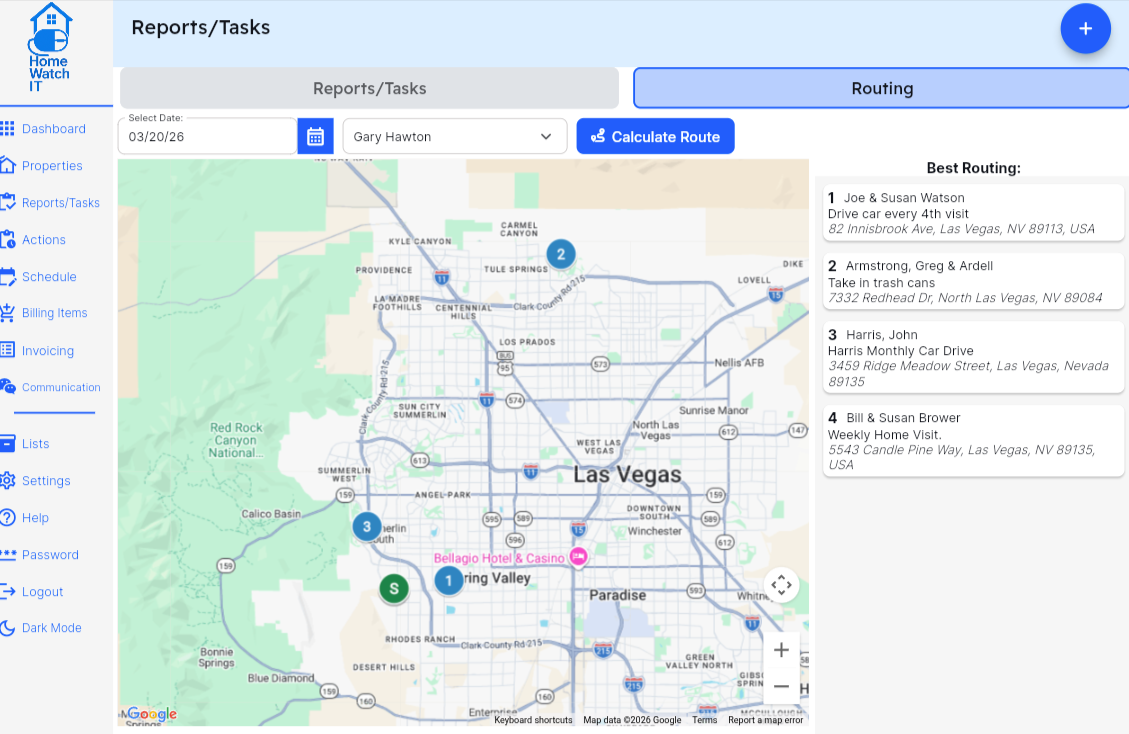
You can then move on to the next person, if desired.
Mobile: Using the Route in the Field
When working in the field, accessing your plan is simple:
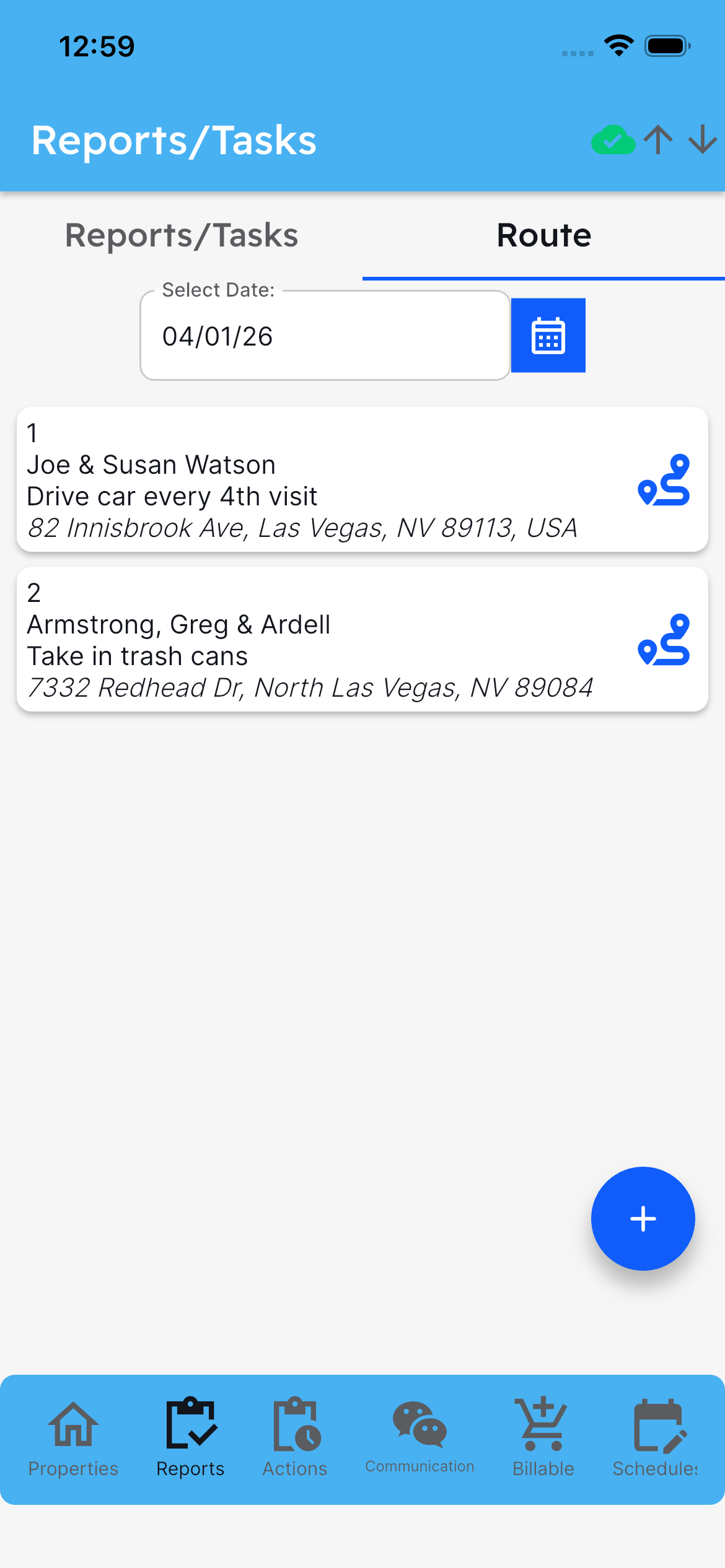
- Open the mobile app and go to Reports → Route.
- View your stops: Your optimized sequence for the day will be displayed.
- Navigate: * Tap the item: Opens the specific Report or Task details.
- Tap the Route Icon: Automatically exports the address to your device’s map application for turn-by-turn driving directions.
- On-the-Go Calculation: If a route hasn’t been planned yet, you can click Calculate Route to generate it on the spot (requires an active internet connection).
Important Distinction: Sequencing vs. Navigation
Section titled “Important Distinction: Sequencing vs. Navigation”- The Route Planner is designed to provide the optimal sequence (the best order) to visit your clients to save time and fuel.
- Turn-by-Turn Directions are handled by your mobile device. Use the Route Icon at each stop to get live traffic and navigation data as you move from one location to the next.
Frequently Asked Questions (FAQ)
Section titled “Frequently Asked Questions (FAQ)”What happens if I add a new Task to a user after a route is already calculated? If a new Report or Task is assigned to a user mid-day, the system will not automatically inject it into the existing sequence. You will need to go back to the Routing screen and click Calculate Route again. The system will then re-optimize the day’s plan to include the new stop in the most efficient position.
Can I manually reorder the stops if I disagree with the AI’s sequence? The Route Planner is designed to find the mathematical “Shortest Path” between all points. While the initial version focuses on the automated optimal sequence, you can always choose to visit stops out of order by simply tapping the address of the client you wish to visit next on your mobile device.
Does the system account for traffic or road closures? The Route Planning feature calculates the best sequence based on geographic distance and typical routing logic. However, live conditions like accidents, construction, or heavy traffic are handled by your phone’s local map application (Google/Apple Maps) once you tap the Route Icon.
What if a client is missing a valid address? If a Work Order or Task does not have a valid, geocodable address, the system will be unable to include it in the calculation. You will see a warning or the stop will simply be omitted. Ensure all client profiles have a complete address (Street, City, State, Zip) for the best results.
Does this work if I lose cell service in the field? You need an active internet connection to calculate or refresh a route. However, if the route was already calculated while you had service, the list of stops will remain visible. Note that launching your map application for turn-by-turn directions may require a data connection depending on your phone’s offline map settings.