
Advanced: API Keys
An API key lets a tool read your HWIT information. Keys are read-only: nothing can be changed, added or deleted with one.
Step A: Create a key (Admin or Full Access)
Section titled “Step A: Create a key (Admin or Full Access)”- Go to Settings → Integrations and click AI & Connectors.
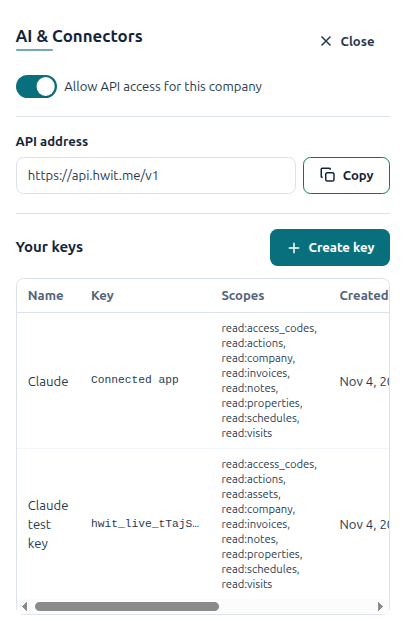
- Click Create key.
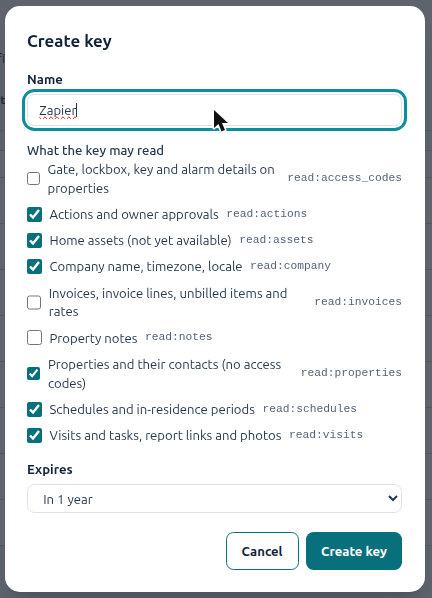
- Give the key a name that says what will use it, for example Zapier.
- Tick what the key may read. Invoices, property notes and access codes are off unless you tick them.
- Choose when the key expires, then click Create key.
- Copy the key now. It is shown only once.
Give the key to whoever sets up the tool. Treat it like a password.
Step B: Use the key
Section titled “Step B: Use the key”The tool sends the key with every request as a header. Either of these works; they are equivalent:
Authorization: Bearer hwit_live_…or, where the tool makes a custom header easier:
X-API-Key: hwit_live_…Always use an address starting with https://. The API refuses plain http://, so a wrong setup fails at once instead of sending your key unprotected.
The addresses start with https://api.hwit.me/v1/. For example:
| Address | What comes back |
|---|---|
/v1/me | Who the key belongs to and what it may read. Use it to test the connection. |
/v1/properties | Your properties, with their contacts |
/v1/visits?from=2026-11-01&to=2026-11-30 | Visits and tasks in a date range |
/v1/schedules | Recurring schedules |
/v1/actions | Open actions |
/v1/invoices | Invoices (needs the invoices item ticked) |
The complete, always-current list of addresses, with every option explained, is at api.hwit.me/v1/docs. (The same information in machine-readable OpenAPI form is at https://api.hwit.me/v1/openapi.json, for tools that can import it.) Lists come in pages: send the cursor from one page to get the next.
In Zapier or Make, use the HTTP / Webhooks module: method GET, the address above, and a header named X-API-Key with your key as the value.
Lost, leaked or no longer needed
Section titled “Lost, leaked or no longer needed”A key cannot be shown again. Under Settings → Integrations → AI & Connectors, click Revoke next to it and create a new one. Anything using the old key stops working at once.
Things to know
Section titled “Things to know”- A key belongs to the person who created it and can never read more than that person can see in HWIT. If that person is removed from the company or changed to View Only, the key follows.
- Admins see every key in the company on the same screen and can revoke any of them.
- A key is limited to 120 requests per minute. If a tool asks faster than that, it receives a rate limited reply and should wait a minute.
- An Admin can turn off Allow API access for this company on the same screen, which stops every key and connection in the company.