
Sending Emails to Your Contacts
You can send an email to one, many, or all of your contacts very easily from the Properties section of the app. Click on Properties and then select the Send Email to Contacts tab.
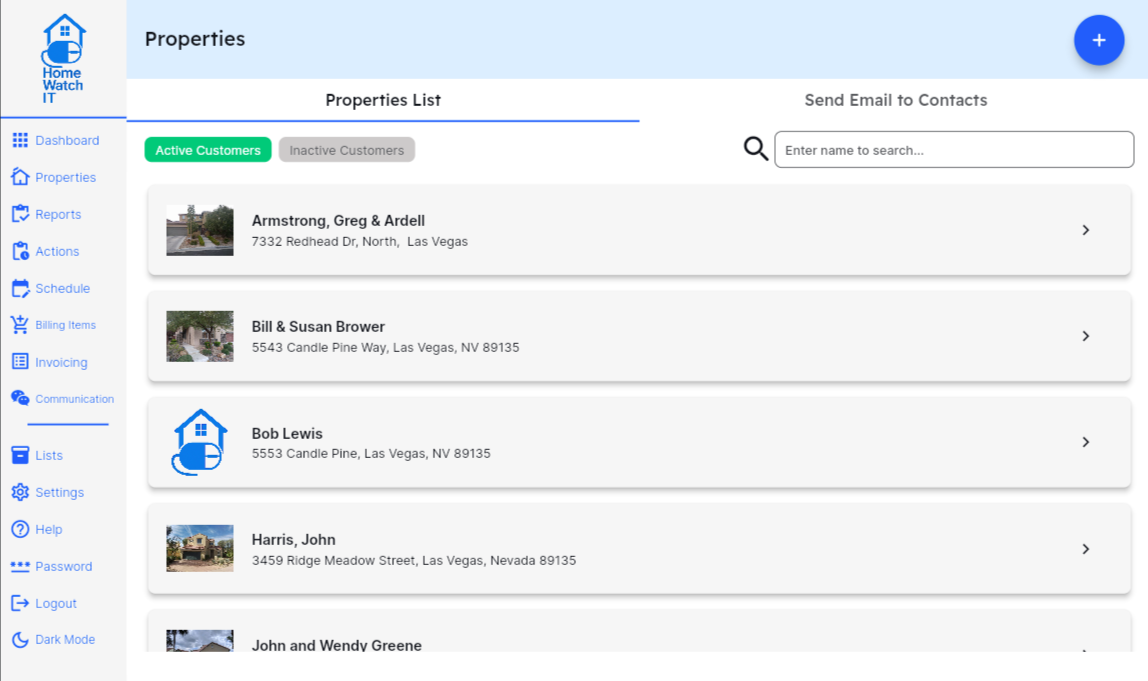
Once on the Send Email screen — you’ll notice two sections:
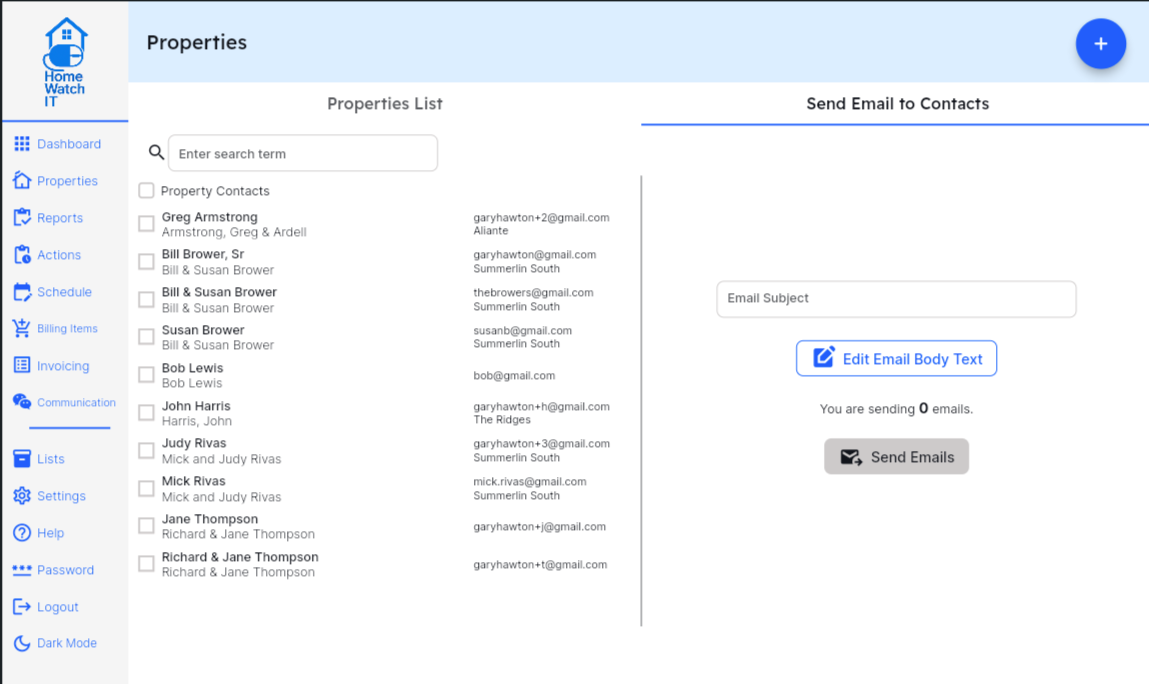
The left side contains a list of all of your available contacts (this list contains all “Property Contacts” for each of your properties, and only those with a valid email address). If a property has multiple Property Contacts, you will see all of them listed for your selection.
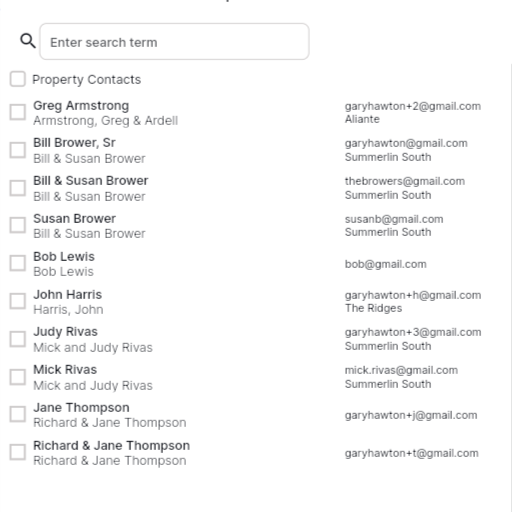
You can easily select the contacts you wish to email by checking the boxes to the left of each contact. You can search on your list and add additional contacts — everything you choose will be added to the existing list so you are able to do multiple searches if necessary.
The Search not only searches on the Contact and Customer names, but also on the Route field — so if you want to send an email to customers in a particular Route you can easily do a search to limit your selection to those.
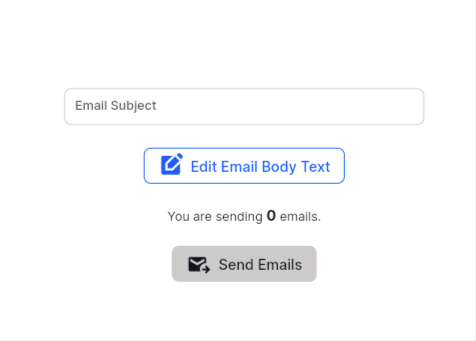
The right half of the screen is where the actions happen — first you can put in the Email Subject line. Then, click the Edit Email Body Text button to bring up an editor that will allow you to enter/edit/format your email body however you wish. Within the body you can also insert the following variables, which will be replaced when sending:
[[firstname]] - the contact’s first name
[[lastname]] - the contact’s last name
Note that each email is sent individually — so therefore by starting the email body with “Dear [[firstname]]” it appears that you are personally addressing each email to each individual customer.
Once your email body is complete, close the editor window, and click the Send Emails button to actually send everything out. Note that the sending all happens from the HWIT email server, so you will not see any delays after hitting the Send Emails button.
Note also — the emails will be sent from whatever email address is used to email your reports. So, if you are using the standard [email protected] — that is what will show for these emails also. However, if you have validated your own personal domain, the emails will appear to be sent from that domain email when your customers receive them.